

By Ehtijad Ali
Updated: October 2026
Reading time: about 11 minutes
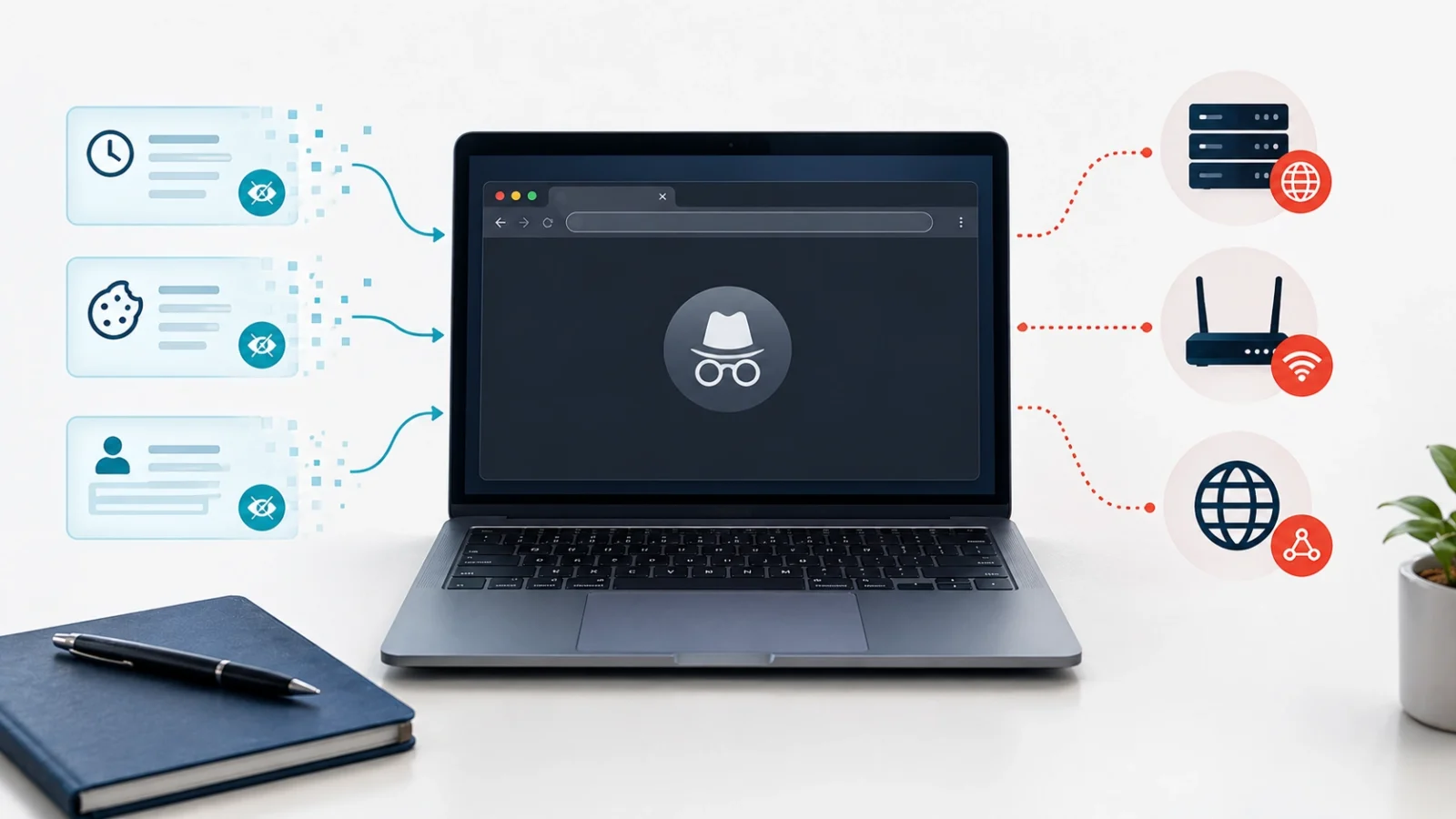
Is incognito mode private? Only a little. Incognito mode stops your browser from saving your history, cookies, and form data on your own device. But it does not hide what you do from websites, your internet provider, or your school or work network.
Maybe you want to search for something without it showing in your history. Maybe you are on a shared family computer. Incognito mode is good for that. It is just not the “invisible mode” many people think it is.
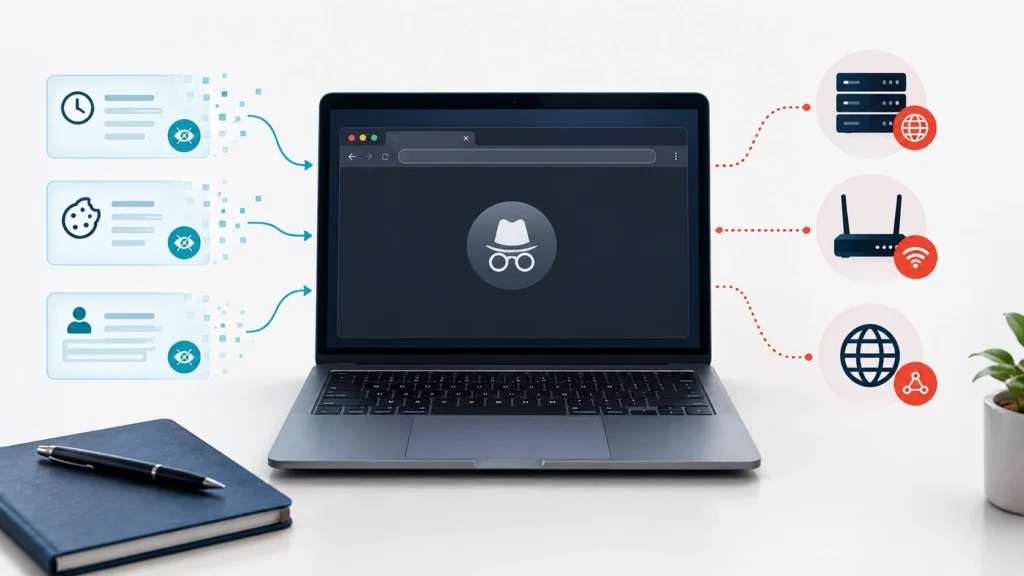
In this guide, you will learn what incognito mode hides, what it does not hide, when it is useful, and simple ways to get more privacy online.
Table of Contents
What is incognito mode?
Incognito mode is the private browsing feature in Google Chrome. Firefox calls it Private Browsing, and Safari and Microsoft Edge have their own private modes too. They all work in a similar way.
When you open a private window, the browser starts a separate, temporary session. When you close all private windows, the browser throws away that session’s history, cookies, and site data.
Think of it like writing on a whiteboard instead of in a notebook. You can use it while you need it, and then it gets wiped clean. But anyone who was watching while you wrote may still remember what they saw.
Google explains the feature in its official guide: Browse in Incognito mode.
What does incognito mode hide?
Incognito mode mainly protects your browsing from other people who use the same device. Here is what it does:
- Browsing history: Pages you visit do not show up in your normal history after you close the private windows.
- Cookies: Small files that websites save are deleted when the session ends.
- Form entries: Things you type into forms are not saved for autofill.
- Separate sign-ins: The private session is kept apart from your normal one, so you start “fresh”.
For example, you might use a shared family computer to look for a birthday gift. Incognito mode helps keep that search out of the history, so the surprise is not spoiled.
But be careful: files you download and bookmarks you save stay on the device. Anyone who uses that computer can still find them.
6 things incognito mode does not hide
This is the part many people get wrong. Incognito mode only controls what your browser saves. It does not make you invisible online. These six can still see or keep your activity:
- Your internet provider (ISP): The company that gives you internet can still see which websites you connect to.
- Your school or employer: If you use their Wi-Fi or a device they manage, they may be able to watch your activity.
- The websites you visit: Websites can still see your IP address, browser details, and what you do on the page.
- Accounts you sign in to: If you log in to Google, YouTube, or Facebook, that service knows it is you.
- Downloads and bookmarks: These stay on your device after you close the window.
- Spyware or monitoring apps: If harmful software is already on your device, incognito mode cannot stop it from watching. For example, infostealer malware can still copy your passwords.
Here is a simple example. If you open YouTube in incognito mode and sign in, YouTube knows exactly which account you are using. The private window does not hide your identity from a service you log in to.
Mozilla explains these limits in its guide to private browsing in Firefox.
Can your internet provider see your incognito history?
Yes, your internet provider can still see which websites you connect to, even in incognito mode. Private browsing does not change how your internet connection works.
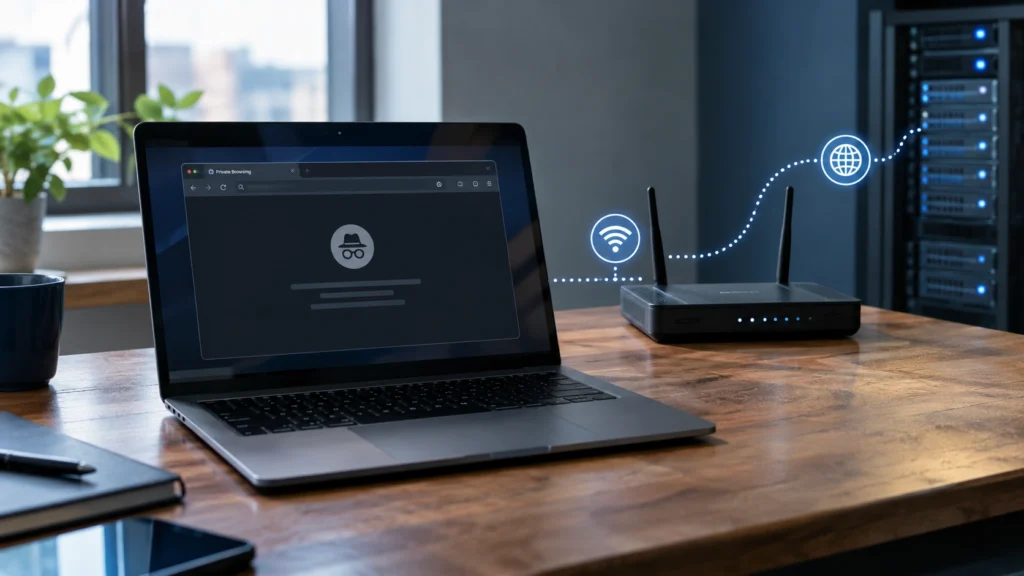
Think of the internet like a road. Your browser is your car. Incognito mode cleans the inside of your car when you get home, but the toll booths along the road still saw where you drove.
Most websites today use HTTPS (the little padlock in the address bar). HTTPS hides the exact pages you read and what you type from people watching the network. But your provider may still see the website’s name, like “example.com”.
On a school or office network, the network owner may also have tools to record connections. The same is true on a device your school or employer manages.
So, if you only want to keep a search off a shared computer, incognito mode helps. If you want to hide activity from the network, incognito mode alone is not enough.
Can websites track you in incognito mode?
Yes. Websites can still collect information about your visit in a private window. They can use your IP address, your account login, cookies during the session, and details about your browser.
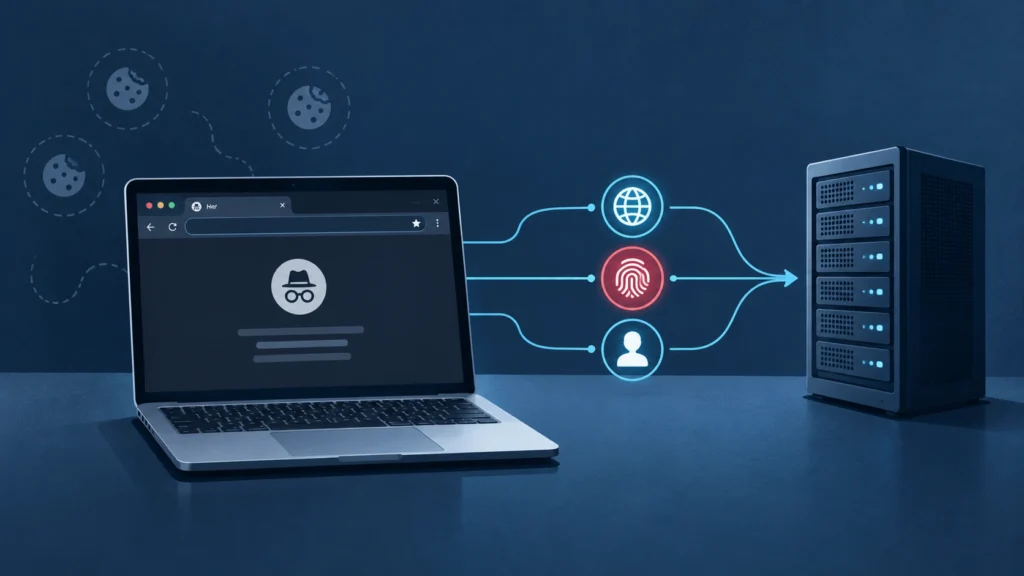
One method is called browser fingerprinting. A website looks at many small details, like your screen size, fonts, and language, to tell you apart from other visitors. Incognito mode does not stop it. You can test your own browser with the EFF’s Cover Your Tracks tool.
To see the full list of details your browser gives away, read what information your browser shares. And to learn why tracking continues even when cookies are blocked, read why blocking cookies is not enough.
So, is incognito mode private? Hides vs. does not hide
| Incognito mode hides from… | Incognito mode does NOT hide from… |
|---|---|
| Other people using your device | Your internet provider |
| Your browser’s history list | Your school or employer network |
| Saved cookies after you close the window | Websites you visit |
| Saved form and search entries | Accounts you sign in to |
| Your normal browsing session | Spyware already on your device |
When is incognito mode actually useful?
Incognito mode is still handy when you understand what it does. Here are some good reasons to use it:
- Using a shared or public computer: Your history will not be left for the next person.
- Signing in to a second account: Use another account without signing out of your main one.
- Shopping for a surprise: Keep a gift search out of the family computer’s history.
- Seeing a “fresh” website: Check how a page looks without your old cookies.
- Testing a website: Developers use it to see a page as a new visitor would.
When you finish private browsing, close all private windows. And if you downloaded a file or saved a bookmark, delete it yourself.
One more tip: on a shared computer, never let the browser save your password, even in a normal window. If you reuse that password elsewhere, one leak can unlock many accounts. Learn why in our guide to credential stuffing.
Private browsing vs. VPN vs. Tor: which one do you need?
People often mix up these three tools. They do very different jobs. Here is a simple side-by-side look:
| Tool | What it hides | What it does not hide | Best for |
|---|---|---|---|
| Private browsing | Your history and cookies on your own device. | Your IP address, your activity from your provider, and your logins. | Shared computers and quick separate sessions. |
| VPN | Your home IP address from websites, and your browsing from your provider. | Your identity when you sign in, and activity the VPN company can see. | Public Wi-Fi and hiding your IP address from websites. |
| Tor Browser | Your IP address and location, by bouncing traffic through three volunteer computers. | Your identity if you sign in or share personal details. | Strong privacy and getting around censorship. |
A good rule: pick the tool that matches the person you want privacy from. Private browsing protects you from people who share your device. A VPN protects you from your local network and provider. Tor protects you from almost everyone seeing where you are connecting from, but it is slower.
None of these tools can protect you if you sign in with your real name, reuse passwords, or fall for a scam. Good habits still matter most. Learn more about whether Tor is legal where you live before you try it.
5 common myths about private browsing
Lots of people believe things about private browsing that are not true. Here are the five most common myths, and the truth behind each one.
Myth 1: “Nobody can see what I do.”
Truth: Only people using the same device are kept out. Your internet provider, the network owner, and the websites you visit can still see activity.
Myth 2: “It protects me from viruses.”
Truth: A private window opens the same websites and downloads the same files. If a site or file is harmful, it can still infect your device.
Myth 3: “It hides my location.”
Truth: Websites can still guess your town or city from your IP address. Private browsing does not change your IP address.
Myth 4: “Signing in is safe because the window is private.”
Truth: Once you sign in, the website knows exactly who you are. Everything you do can be linked to your account.
Myth 5: “Everything is deleted when I close the window.”
Truth: History and cookies are deleted from the browser, but downloads, bookmarks, and records kept by websites and networks are not.
How to use private browsing on your phone
Private browsing works on phones too, and it has the same limits. Here is how to open it on the most common browsers:
- Chrome on Android or iPhone: Tap the three dots, then tap New Incognito tab.
- Safari on iPhone: Tap the tabs button, then switch to Private.
- Firefox on a phone: Tap the mask icon or choose New private tab.
- Samsung Internet: Open the tabs view and turn on Secret mode.
On a phone, remember that apps are different from the browser. If you use the YouTube or Facebook app, private browsing in your browser does not affect what those apps collect. Check app permissions in your phone settings instead.
Also, close your private tabs when you are done. On some phones, private tabs stay open in the background until you close them yourself.
How to get more privacy online
Want more privacy than incognito mode gives you? Start with these five simple steps.
1. Use a browser with tracking protection
Choose a browser that blocks trackers and keep it updated. Firefox and Safari both have built-in tracking protection. Read the official guides for Firefox tracking protection and Safari tracking prevention.
2. Check your cookies and site permissions
Cookies help websites remember you and keep you signed in. Some are used to follow you around the web. Clear the ones you do not need, but know that blocking every cookie can break some websites.
3. Think before you sign in
When you sign in, a website can link everything you do to your account. Only sign in when you need to, and check the privacy settings of services you use a lot.
4. Know what a VPN can and cannot do
A VPN (virtual private network) sends your traffic through another server, which hides your home IP address from websites. But it does not make you anonymous. Websites still know you when you sign in, and the VPN company can see some of your activity. Read our honest guide: do VPNs make you anonymous?. If you are deciding between tools, see Tor vs VPN.
5. Keep your device safe
Update your browser and phone, use strong and unique passwords, and avoid strange downloads. For a quick plan, see the most important privacy settings to change today.
How much about you is already public?
Even with perfect browser settings, some information about you may already be public online, like old posts or profile photos. Researchers use free public tools to find this kind of information. You can learn how they work, and check what is out there about you, with our list of free OSINT tools for beginners.
Frequently asked questions
Is incognito mode completely private?
No. Incognito mode only stops your browser from saving your history, cookies, and form data on your device. Websites, your internet provider, and school or work networks can still see some of your activity.
Can my parents see my incognito history?
Your browsing will not show in the normal Chrome history after you close all incognito windows. But parental control apps, the home Wi-Fi router, or managed devices may still record some activity.
Does incognito mode hide my IP address?
No. Websites can still see your public IP address in incognito mode. A VPN or Tor can change which IP address a website sees, but each tool has its own limits.
Does incognito mode delete my downloads?
No. Files you download stay on your device after you close the private window. You need to delete them yourself.
Is incognito mode safer than normal browsing?
It gives you privacy from other people using the same device. It does not protect you from viruses, scams, or fake websites. Safe habits and updated software still matter.
Does incognito mode stop Google from tracking me?
Not completely. Google can still collect information when you use its websites, and if you sign in, it can link activity to your account. Incognito mode does not block all tracking.
Helpful links and sources
Use these official resources to learn more about private browsing and online privacy.
- Google Chrome: Browse in Incognito mode
- Mozilla Firefox: Private Browsing
- Apple Safari: Browse privately
- EFF: Surveillance Self-Defense
- EFF: Cover Your Tracks browser test
- DeepHiDX: Dark web glossary
- DeepHiDX: Sources and research
The short version
Is incognito mode private? Only in a small way. It keeps your history and temporary site data off your device after you close all private windows. It does not hide your IP address, stop websites from tracking you, or hide your activity from your internet provider.
Use incognito mode for a quick, separate session on a shared device. For real privacy, add tracking protection, careful sign-ins, unique passwords, and updated software. Private browsing is a handy tool, but it is only one small part of staying private online.


Comments