

By Ehtijad Ali
Updated: October 2026
Reading time: about 11 minutes
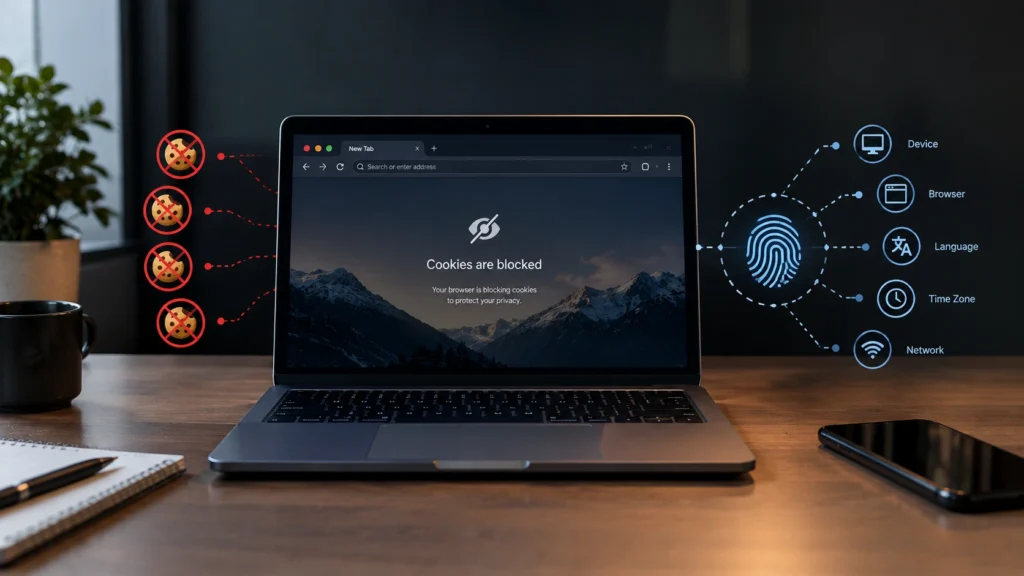
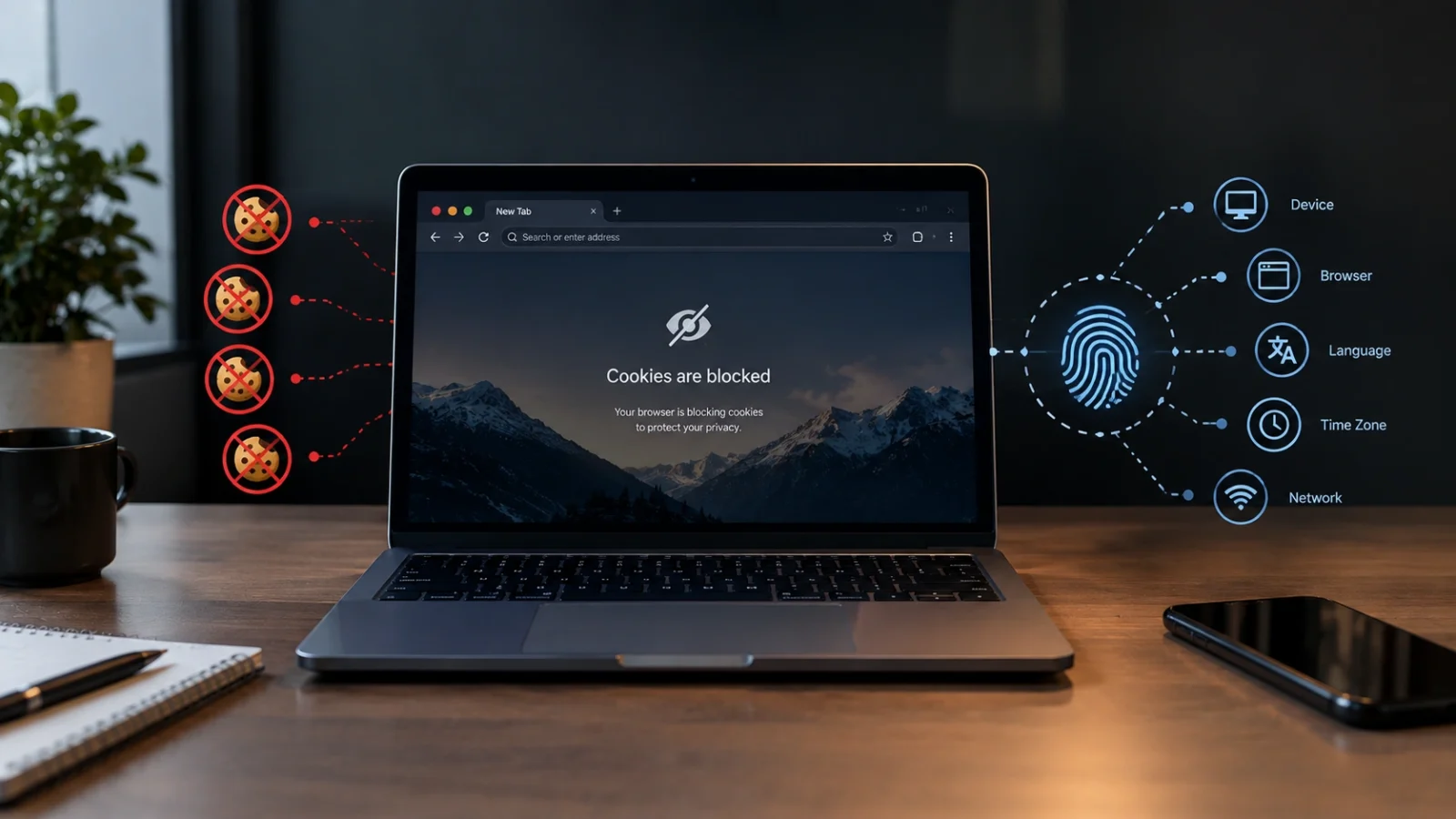
You may have already blocked third-party cookies in your browser. That is a good step.
But here is the part many people miss: blocking cookies is not enough to stop all tracking.
Cookies are only one way websites can learn about you. A website can also see information your browser sends when you open a page. Some of that information can help build a picture of your device.
This is called browser fingerprinting. The name sounds complicated, but the basic idea is simple. Your browser has a mix of settings and features that can sometimes make it easier to tell your device apart from others.
This guide explains what cookies do, why blocking them still helps, how websites can track you without cookies, what private browsing really does, and which privacy settings are worth using.
What is in this guide?
What cookies did and why blocking them helped
Cookies are small pieces of data that websites store in your browser.
They can be useful. A cookie can help a website remember that you are logged in. It can remember your language, shopping cart, or other settings.
But cookies can also be used for tracking.
For many years, third-party cookies were an important way for advertising and tracking companies to follow people across different websites. A tracker could be loaded on many sites and use the same cookie to help connect visits. This kind of tracking is also why some ads feel so personal that people ask if their phone is listening to them.
That is why blocking third-party cookies is useful. Firefox, for example, blocks cross-site tracking cookies by default and also has Total Cookie Protection, which keeps cookies separated by website. Chrome also lets users block third-party cookies.
So yes, blocking cookies can reduce tracking.
The problem is thinking that cookies are the only way websites can recognize or learn about a browser.
Why blocking cookies is not enough
Imagine you remove the name tag from your shirt.
Someone may still recognize you by your clothes, shoes, height, voice, and the way you walk.
Browser tracking can work in a similar way.
Even when cookies are blocked, a website can receive other information from your browser and connection. Depending on the browser and the website, this can include things such as your browser type, screen details, language, time zone, device information, and other technical details.
EFF explains that trackers can use many small pieces of browser and device information to create a digital fingerprint. WebKit also describes fingerprinting as tracking based on properties of the browser, device, network connection, and other signals.
That is the main reason blocking cookies is not enough to stop all tracking.
Browser fingerprinting explained simply
Browser fingerprinting means looking at several details about a browser and device and using them together.
Think about a fingerprint on your finger. One person has one pattern. Another person has another.
A browser fingerprint is not exactly the same thing, but the idea is similar. A website may collect many technical details and see how unusual that combination is.
It works a bit like checking a viral photo online. One clue, like a street sign, does not prove much. But many small clues together can point to one place. Our guide How to Verify a Viral Photo in 5 Minutes shows that same “many small clues” idea in action.
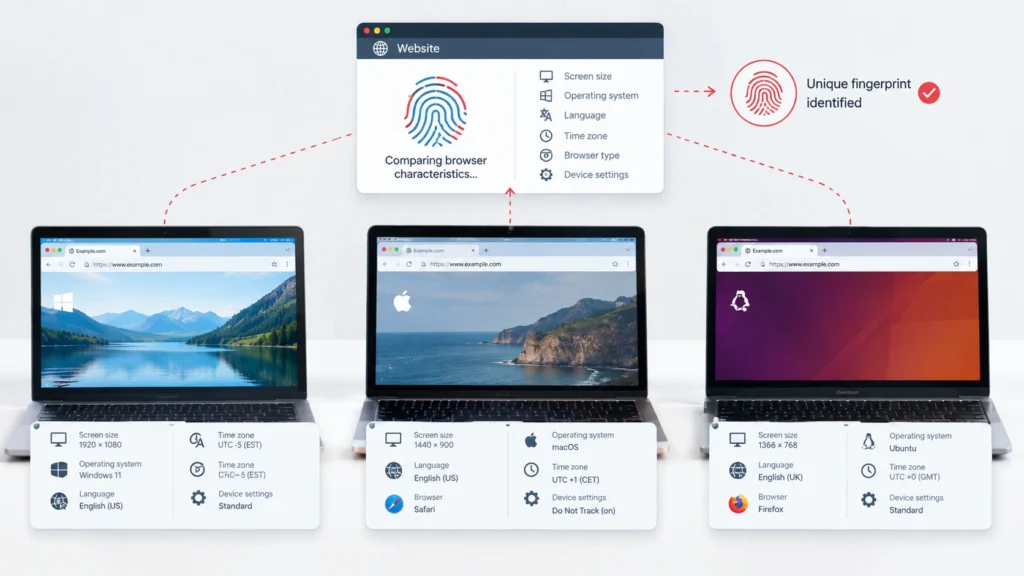
- Your browser and browser version
- Your operating system
- Your screen size and display details
- Your language and time zone
- Some device and hardware details
- Information available through browser features
- Details that JavaScript can learn from the browser
EFF’s Cover Your Tracks project shows several of the types of information that can contribute to a browser fingerprint, including screen settings, time zone, browser details, JavaScript information, canvas data, and other signals.
This does not mean every website can instantly know exactly who you are. Fingerprinting is not magic. A fingerprint can be shared by many people, and modern browsers add protections against it.
It simply means that blocking cookies does not remove every possible tracking method.
What your browser tells every website you visit
When you open a website, your browser has to send some information so the page can work.
For example, the website needs to know what kind of browser is talking to it. Your request can also contain information such as language and other technical details.
Then the website can use browser code, often JavaScript, to learn more information that the browser makes available.
EFF’s browser testing project shows how web headers and JavaScript can reveal different browser characteristics.
Want to see the full list, with a real example of one page load? Read our detailed guide: What Information Does My Browser Share? 10 Things Websites Can See.
There is another important detail: your IP address.
An IP address can give a website information about the network connection reaching it. It may also provide a rough idea of your location through IP-based location data. A cookie blocker does not normally hide your IP address.
A VPN can hide your IP address from websites, but it does not change your browser fingerprint. Learn what a VPN can and cannot hide in Do VPNs Make You Anonymous?
If you are logged into a website, the situation is even simpler. The website already knows which account you are using. Blocking cookies cannot make a website forget an account you deliberately signed into.
Does private browsing stop tracking?
No. Private browsing is useful, but it does not make you invisible.
Private or Incognito mode mainly changes what your browser saves on your device. For example, your normal browsing history and some site data are removed when the private session ends.
Modern browsers also add some tracking protection to private modes. Firefox, for example, blocks known trackers in Private Browsing and uses Total Cookie Protection.
But private browsing does not stop the websites you visit from seeing requests from your browser. Firefox itself says Private Browsing does not make you anonymous. Websites, your internet provider, or your employer may still be able to gather information about your activity.
So if you are asking, can websites track you without cookies? the answer is yes. Private browsing can reduce some local traces and some tracking, but it is not a magic privacy switch.
What cookie consent banners really control
You have probably seen a banner saying, “We use cookies.” It may give you buttons such as Accept, Reject, or Manage Settings.
These banners can be useful. They may let you choose whether to allow certain optional cookies or other forms of data collection.
But a consent banner is not the same thing as a complete anti-tracking system.
What the banner controls depends on how the website is built and what choices it offers. It may control optional cookies or advertising tools, but it does not mean that every piece of information your browser sends has disappeared.
It is also important to understand that first-party cookies can have useful jobs. Blocking every cookie can break logins, shopping carts, and other website features.
That is why the goal should not always be “block everything.” A better goal is to reduce unnecessary tracking while keeping the websites you need working.
Privacy defences ranked by effort
You do not need to change 20 browser settings today. Start with the easy steps.
1. Use a browser with built-in tracking protection — Easy
This is the easiest place to start. Modern browsers have different privacy features built in. Firefox, for example, has Enhanced Tracking Protection, Total Cookie Protection, and fingerprinting protection.
2. Block third-party cookies — Easy
Blocking third-party cookies can reduce cross-site tracking. Chrome provides a setting for this, while Firefox blocks cross-site tracking cookies by default.
3. Use a tracker blocker — Easy to Medium
A good tracker blocker can stop many known tracking scripts and advertising trackers before they load. This can also make pages faster and reduce unwanted data collection.
EFF’s Cover Your Tracks project recommends using tracking protection and notes that completely blocking every tracker is difficult.
4. Keep your browser updated — Easy
Browser makers keep changing their privacy protections. Updates can add new defenses and fix security problems. Turn on automatic updates when possible.
5. Do not install lots of unusual browser extensions — Medium
Browser extensions can add useful features, but every extension also adds software to your browser. Keep only the extensions you trust and actually use.
6. Use stronger fingerprinting protection — Medium to High
Some browsers try to make your browser look less unique. Firefox has built-in fingerprinting protection, and Safari also works to reduce fingerprinting through changes to the information websites can access.
Do not try to change every browser detail yourself. Making your browser unusual can sometimes make it easier to identify, not harder. Browser-level protection is usually a better choice.
7. Use a privacy-focused browser or separate browser profile — Higher effort
If privacy is very important to you, you can use a browser designed with stronger privacy protections or keep separate browser profiles for different parts of your life.
This takes more work and can sometimes cause website problems. For most people, the first four steps are a good start.
Your simple privacy checklist
- Block third-party cookies.
- Turn on your browser’s built-in tracking protection.
- Keep your browser updated.
- Remove browser extensions you do not need.
- Do not assume Private or Incognito mode makes you anonymous.
- Remember that websites can still receive information other than cookies.
- Use browser fingerprinting protection when your browser provides it.
- Think before accepting optional tracking in a cookie banner.
- Check what your browser reveals with EFF’s Cover Your Tracks test.
If you are learning about online privacy for the first time, you can also read our dark web glossary for simple explanations of privacy and security terms.
And if you want to understand another common privacy mistake, read our guide on infostealer malware. It explains how harmful software can steal browser cookies, passwords, and other saved information.
Why sharing less data matters
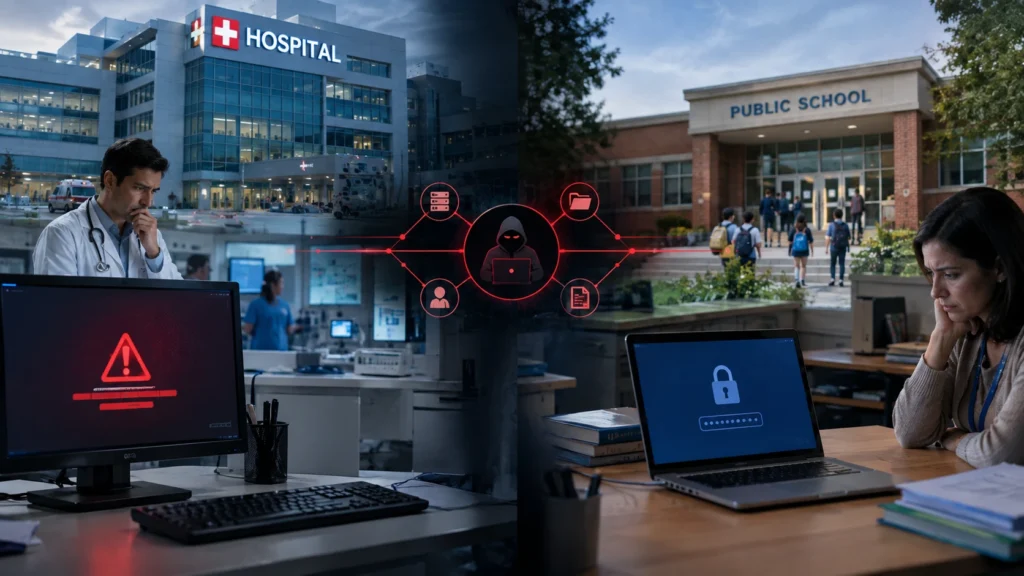
You might think, “So what if a website knows my screen size?” One small detail is usually harmless. The problem is that data collected about you is stored somewhere. And stored data can be stolen.
Even big, important places get hacked. Our guide Why Do Hackers Target Hospitals and Schools? shows how private records can leak when a company or service is attacked. The less data that is collected about you, the less there is to lose.
Hard words made simple
- Cookie: a tiny file a website saves in your browser, like a name tag, so it can remember you.
- Third-party cookie: a cookie from a different company, like an ad company, that can follow you across many websites.
- Tracker: a hidden tool on a website that collects information about what you do.
- Browser fingerprinting: recognizing your browser by mixing many small details, like screen size, language, and time zone.
- IP address: a number that works like a home address for your internet connection.
- Incognito or Private mode: a browser mode that does not save your history on your device. It does not make you invisible online.
Questions people ask
Does blocking cookies stop tracking?
No. Blocking third-party cookies can stop or reduce some types of cross-site tracking, but it does not stop every tracking method. Websites can still use other information, including browser and device signals, network information, and account data.
Is it bad to accept cookies?
Not always. Many cookies do helpful jobs, like keeping you logged in or remembering what is in your shopping cart. These are usually first-party cookies from the website you are using.
The ones to think about are optional cookies for ads and tracking. When a cookie banner gives you a choice, it is usually safe to choose “Reject all” or “Necessary only.” The website should still work, and fewer companies get to follow you around the web. If something breaks, you can always change your choice later in the website’s cookie settings.
Can websites track you without cookies?
Yes. Browser fingerprinting is one example. A website can look at a combination of browser and device characteristics. EFF and WebKit both document fingerprinting as a form of tracking that does not depend on ordinary cookies.
Does Incognito stop websites from tracking you?
No. Incognito or Private Browsing can reduce what is saved on your device and may block some trackers, depending on the browser. But it does not make you anonymous. Websites can still receive information from your connection and browser.
Is browser fingerprinting dangerous?
It can create a privacy problem because it may help a website or tracker recognize a browser without using a normal tracking cookie. But fingerprinting does not automatically mean someone knows your real name or exact identity.
Should I block all cookies?
Not always. Some cookies are needed for normal website features such as login sessions and shopping carts. Blocking third-party tracking cookies is usually a more useful starting point than breaking every website by blocking all cookies.
What is the best way to stop browser fingerprinting?
Use a browser with built-in fingerprinting protection and keep it updated. Avoid making your browser setup unusual with lots of custom settings and extensions. The goal is to make your browser harder to identify, not more unique.
Sources and further reading
We used official browser documentation and research from organizations that work on online privacy. You can also see how we choose and check sources on our Sources & Research page.
- Electronic Frontier Foundation — How browser fingerprinting works
- EFF Cover Your Tracks — Test your browser
- Mozilla — Total Cookie Protection
- Mozilla — What Private Browsing can and cannot do
- Google Chrome — Manage third-party cookies
- WebKit — Tracking Prevention
- WebKit — Tracking Prevention Policy
DeepHiDX also follows a simple rule: important claims should have a source that readers can check. Our Editorial Policy explains how we research, check, and update articles.
The short version
Blocking cookies helps, but it is not the end of tracking.
Websites can still receive other information from your browser and connection. Browser fingerprinting can use a mix of technical details to make a browser easier to recognize. Private browsing helps with some local history and tracking, but it does not make you anonymous.
The best simple start is to use a browser with strong privacy protection, block third-party cookies, keep your browser updated, remove extensions you do not need, and understand what private browsing really does.
You do not need perfect privacy to make a real difference. A few good settings can reduce a lot of unwanted tracking.



Comments