
By Ehtijad Ali
Updated: October 2026
Reading time: about 11 minutes
Looking for free OSINT tools for beginners? Good news: you do not need to be a hacker or a computer expert to start an online investigation. Lots of useful facts are already out in the open, on public websites, maps, image search tools, and old web pages.
Finding and checking that public information is called open-source intelligence, or OSINT for short.

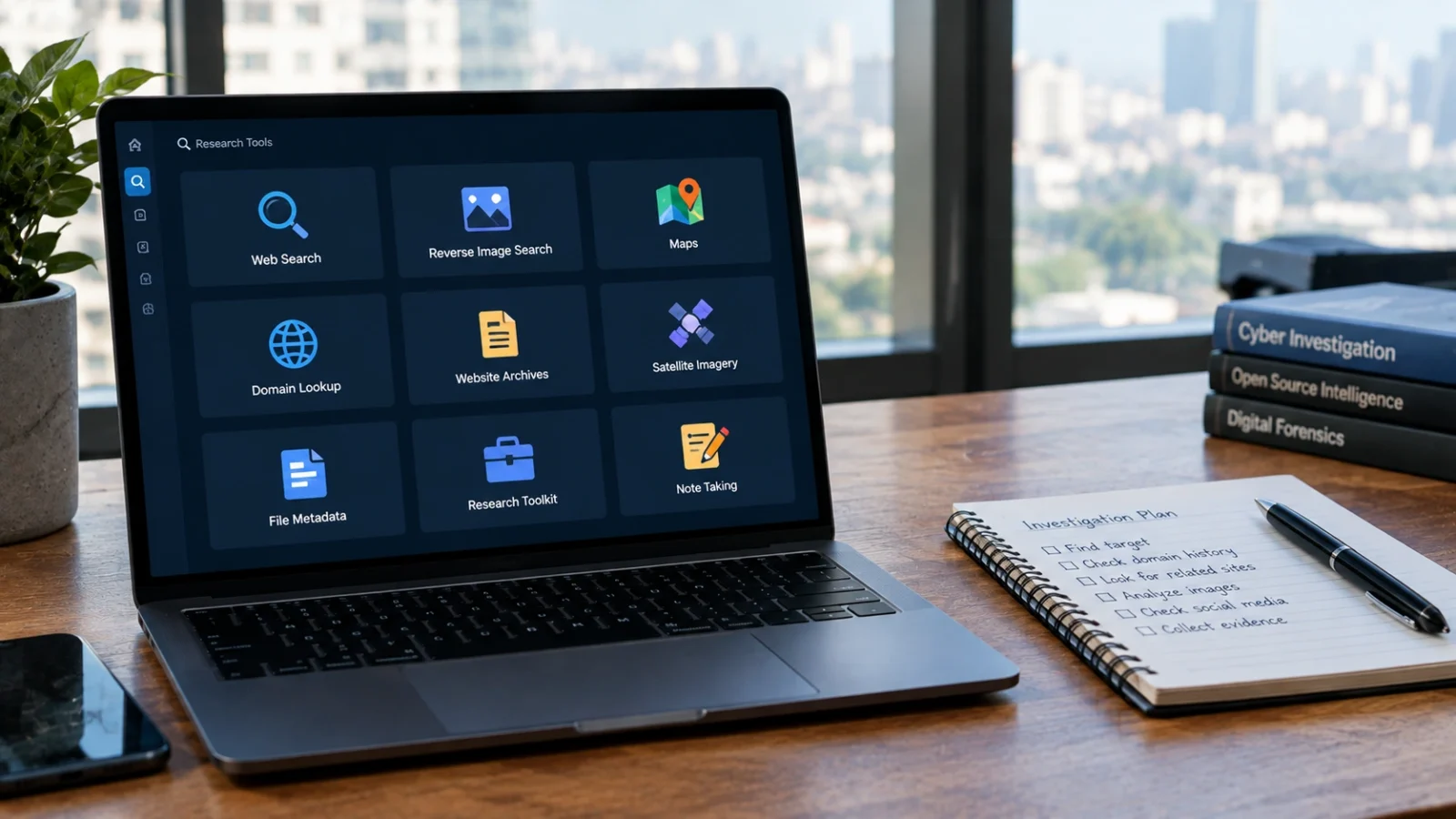
In this guide, you will meet nine free OSINT tools. For each one, you will learn what it does, a small task to try, and what it cannot do. You do not need paid software or coding skills.
We will also show you how to keep good notes, check your facts, and stay within the law.
Table of Contents
What is OSINT?
OSINT means finding, checking, and writing down information from public sources. “Open source” here just means “open to everyone.”
Here are some everyday examples:
- A journalist checks a claim by reading public news reports.
- A website owner looks up who registered a web address.
- A researcher looks at old copies of a web page to see what changed.
OSINT is not hacking. You never break into accounts, steal passwords, or enter private systems. The goal is simple: find useful public facts and check if they support a claim.
New to these words? Our dark web glossary explains common online security terms in plain language.
9 free OSINT tools for beginners
Each of these OSINT tools has one main job, like searching web pages, checking pictures, viewing old websites, or exploring maps. Most work right in your web browser. Some features may need a free account, and free features can change over time.
1. Google Search: find public information
Website: Google Search
Google Search is one of the easiest free OSINT tools for beginners. It helps you find public web pages, news stories, company websites, and reports.
You can make searches sharper with two simple tricks. Put a phrase in “quotation marks” to find those exact words. Or type site: before a web address to search only that one website.
Try this: Pick a well-known company. Search site:example.com contact, but replace example.com with the company’s real web address. Did you find its contact page?
What it cannot do: Google does not show every page on the internet. Some pages are hidden, deleted, or out of date. A search result alone does not prove something is true.
2. Google Lens: search with a picture
Website: Google Lens
Google Lens lets you search using a picture instead of words. It can find similar images, products, places, and web pages where a picture appears.
This helps you check if a picture has been online before, and can lead you to where it first came from.
Try this: Pick a photo you took of a famous landmark. Upload it to Google Lens and look for pages showing the same place.
What it cannot do: Pictures that look alike are not always the same picture. No results does not mean an image is new, fake, or original. Always check the source and date. Learn more in our guide on how to verify a viral photo in 5 minutes.
3. Wayback Machine: see old versions of websites
Website: Internet Archive Wayback Machine
The Wayback Machine saves copies of many web pages over time. It lets you see how a website looked in the past, even after it changed.
This is useful for checking old company pages, past announcements, and what a page used to say.
Try this: Type in the address of a big news website. Pick an older date and compare it with how the page looks today.
What it cannot do: The archive does not save every page or every change. Some pictures and links may be missing. An old page also needs context before you decide what it proves.

4. ICANN Lookup: check who registered a website
Website: ICANN Lookup
A domain is a website address, like example.com. ICANN Lookup shows public registration details for many domains.
You may see the company that sold the domain (the registrar), the dates it was registered, and its name servers. Personal details are often hidden for privacy.
Try this: Look up the web address of a well-known organisation. Write down the registrar and the registration dates.
What it cannot do: Domain records do not prove who runs a website today, or whether a business is honest. A registration date is not proof of when a site first went live.
5. OpenStreetMap: explore free public maps
Website: OpenStreetMap
OpenStreetMap is a free map made by volunteers. It shows roads, buildings, parks, and public places.
It helps you check if a road or landmark is really where a report says it is. You can also compare map details with public photos.
Try this: Search for a public museum or library. Look at the nearby roads and compare its spot on the map with the address on its official website.
What it cannot do: Maps can have missing, old, or wrong details. A place on a map does not prove that a person was there at a certain time.
6. TinEye: find copies of an image
Website: TinEye
TinEye is a reverse image search tool. You give it a picture, and it looks for matching copies across the web.
It can show which other websites use a picture. This helps when you want to learn a picture’s history or find an older version.
Try this: Use a picture you own. Search for it and compare any results with your original file.
What it cannot do: TinEye cannot find every copy online. A result does not always show which website posted the picture first.
7. Google Earth: explore places around the world
Website: Google Earth
Google Earth lets you explore the world using satellite images and 3D views. You can see roads, buildings, coastlines, and the land around a place.
Researchers use maps and photos together to check if a picture really matches a real location. This is called geolocation.
Try this: Find a famous landmark, like a big bridge. Compare its shape and nearby roads in Google Earth with a photo from its official visitor website.
What it cannot do: Satellite images may be old and do not show what is happening right now. A similar building is not enough to prove an exact location. For a full walkthrough, read how to find where a photo was taken.

8. Bellingcat’s Online Investigation Toolkit: find the right tool
Website: Bellingcat’s Online Investigation Toolkit
Not sure which tool to use? This free toolkit is a great place to start. It sorts hundreds of research tools into groups like maps, images, social media, and archives.
Bellingcat is a well-known team of online investigators. Many tools in the list are free, while some are only partly free.
Try this: Open the toolkit and choose the image or map section. Pick one tool, read its description, and write down what it does before you try it.
What it cannot do: The toolkit is a list, not a promise that every tool is safe, free, or up to date. Always check a tool’s own website and privacy rules first. You can also read Bellingcat’s guide to its toolkit.
9. ExifTool: read hidden file details
Website: ExifTool
Many files carry hidden extra information called metadata. For a photo, this can include the date it was taken or the camera model.
ExifTool is a free program that can read this metadata from many kinds of files. It is a bit more technical than the browser tools above, but beginners can follow its instructions and practice on their own files.
Try this: Pick a photo you took yourself. Follow ExifTool’s official instructions to read its metadata. Write down which details are there and which are missing.
What it cannot do: Metadata can be removed, changed, or lost when a file is edited or shared. A date inside a file is not proof of when or where a photo was taken.
How to do a simple OSINT investigation
Let’s try a real example. Imagine you want to check if a public organisation changed its contact page.
- Start with a question. Write down exactly what you want to check.
- Find the official website. Use Google Search and write down the full web address.
- Check the page today. Save the address and note the date.
- Look for an older copy. Search the same page in the Wayback Machine.
- Compare. Write down what changed and what stayed the same.
- Keep your evidence. Save links, dates, screenshots, and notes.
This shows how two tools can work together: one finds the page, and the other shows its past. You do not need all nine OSINT tools for every question.
How to record your research findings
Good research needs clear notes. You should be able to check your work later, and someone else should be able to follow your steps.
For each finding, write down:
- Question: What were you trying to check?
- Source: Which website or tool did you use?
- Link: What is the full page address?
- Date: When did you look at it?
- Finding: What did you actually see?
- Limit: What could you not confirm?
- Next step: What other source could help check it?
Here is a good example note: “On 12 October 2026, the saved copy of a public contact page showed a different email address than today’s page. I saved both links. I do not know why the address changed.”
That is much better than writing, “The organisation hid its real email.” Good notes only say what the evidence shows.
How the pros use OSINT
The same simple skills are used by journalists, security teams, and police. Security teams search public sources to spot leaked work logins before criminals use them. These logins are often sold by initial access brokers, who break into company networks and sell the way in.
Police also combine public clues with other evidence. Many major dark web takedowns started with small public mistakes, like a reused username or email address. Investigators may also follow public crypto records. Learn how in our guide: can Bitcoin be traced?.
The legal and ethical rules of OSINT
Just because something is online does not mean every use of it is fair or legal. Privacy laws and website rules are different in each country.
Follow these simple rules when you use free OSINT tools for beginners:
- Use public information only for a clear and lawful reason.
- Never try to get into private accounts or systems.
- Never steal passwords, pretend to be someone else, or get around security.
- Do not share private details that could put someone in danger.
- Do not treat one search result, image match, or map view as proof.
- Respect copyright, privacy, and each website’s rules.
- Keep only what you need, and protect your notes.
If you are checking a company or website for security reasons, stay within the permission you have. Public research never gives you permission to test or disrupt private systems.
For more research guidance, visit our Sources & Research page. You can also explore the dark web timeline or our investigations hub.
Common OSINT mistakes to avoid
Beginners often make the same mistakes. You can avoid most of them by slowing down.
- Trusting the first result: Check the original source and find another reliable one.
- Ignoring dates: An old page may not show what is true today.
- Mixing up people: Two people can share the same name or username.
- Thinking a match proves everything: Similar pictures can have other explanations.
- Forgetting to save links: Pages can disappear or change.
- Using too many tools: Start with the one tool that fits your question.
Frequently asked questions
What are the best free OSINT tools for beginners?
Great starting points are Google Search, Google Lens, the Wayback Machine, ICANN Lookup, OpenStreetMap, TinEye, Google Earth, Bellingcat’s toolkit, and ExifTool. The best one depends on the question you want to answer.
Can I learn OSINT without coding?
Yes. Most beginner OSINT tools work in a normal web browser. You can learn searching, image checks, maps, and website history without writing any code. Only a few tools, like ExifTool, need extra setup.
Are free OSINT tools safe to use?
Well-known OSINT tools are generally safe for public research. Still, check each tool’s official website and privacy policy. Avoid unknown sites that ask for passwords or too much personal information.
Is OSINT legal?
Researching public information is usually legal, but the rules depend on what you collect, how you use it, and where you live. Getting into private accounts or misusing personal data can break the law.
Can OSINT tools prove that a picture is real?
No single tool can prove that. Reverse image search, metadata, maps, and old web pages all give clues. Compare the results and explain what is still uncertain.
How should I save OSINT findings?
Write down your question, source links, dates, screenshots, findings, and limits. This makes it easy to check your work and fix mistakes later.
Helpful OSINT resources
Use these official websites and guides to learn more. Always check each tool’s current features and rules.
- Google Search: search public web pages.
- Google Lens: search using images.
- Wayback Machine: view archived pages.
- ICANN Lookup: check domain registration data.
- OpenStreetMap: explore free maps.
- TinEye: find image matches.
- Google Earth: explore places with satellite images.
- Bellingcat Online Investigation Toolkit: discover more research tools.
- ExifTool: read file metadata.
- Bellingcat guides: learn research and checking methods.
The short version
You do not need expensive software or special skills to start learning OSINT. Free OSINT tools can help you search the web, check pictures, view old websites, explore maps, and read file details.
Start with one clear question. Pick the tool that fits it, save your evidence, and write down what you could and could not confirm. Most of all, use these skills fairly and within the law.



Comments