

By Ehtijad Ali
Updated: October 2026
Reading time: about 9 minutes

You find an old photo online. Someone says it was taken yesterday, but you are not sure. Can you find out when the picture was really taken?
Yes, sometimes you can. You do not always need the date saved in the photo file. You can look at the sun, shadows, weather, signs, buildings, and other small details in the picture.
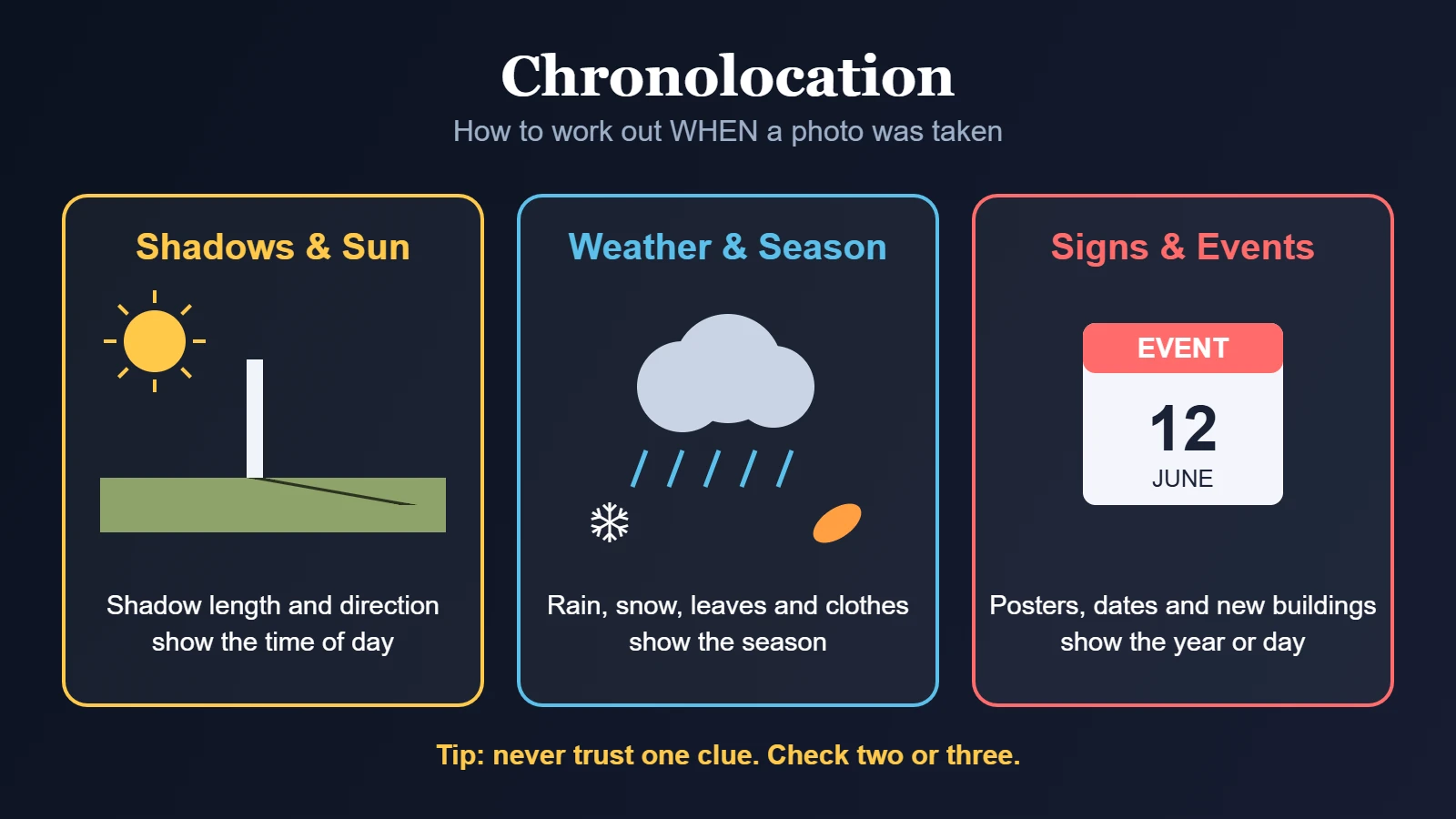
This method is called chronolocation. It means using clues to work out when a photo or video was taken. It is useful for checking online pictures, news reports, old photos, and other public images.
In this guide, you will learn how to tell when a photo was taken, which free tools can help, why photo dates can be wrong, and how to test your findings step by step.
What is in this guide?
What Is Chronolocation?
Chronolocation means finding out when a photo or video was most likely made. You do it by studying the clues inside the picture.
Think of it like solving a puzzle. A photo may show a long shadow, wet roads, winter clothes, or a sign for an event. Each clue can help you work out when the picture was taken.
Chronolocation is different from geolocation. Geolocation helps you find where a photo was taken. Chronolocation helps you find when it was taken. Researchers often use both methods together. To learn the “where” part, read our guide on how to find where a photo was taken.
For more simple explanations of online investigation terms, visit our dark web glossary.
Why Photo Dates Can Be Wrong
Many photos contain hidden file details called metadata. This information may include the camera model, the date the picture was taken, and sometimes the place where it was taken.
But these details do not always tell the full story. A camera may have the wrong date or time. Someone may edit the image, remove its metadata, or save a copy that has a different file date.
The date a photo was uploaded is also not always the date it was taken. For example, a picture from last year could be posted on social media today.
That is why you should not trust one date alone. Check the file details and compare them with what you can see in the image.
1. Check the Shadows and the Sun
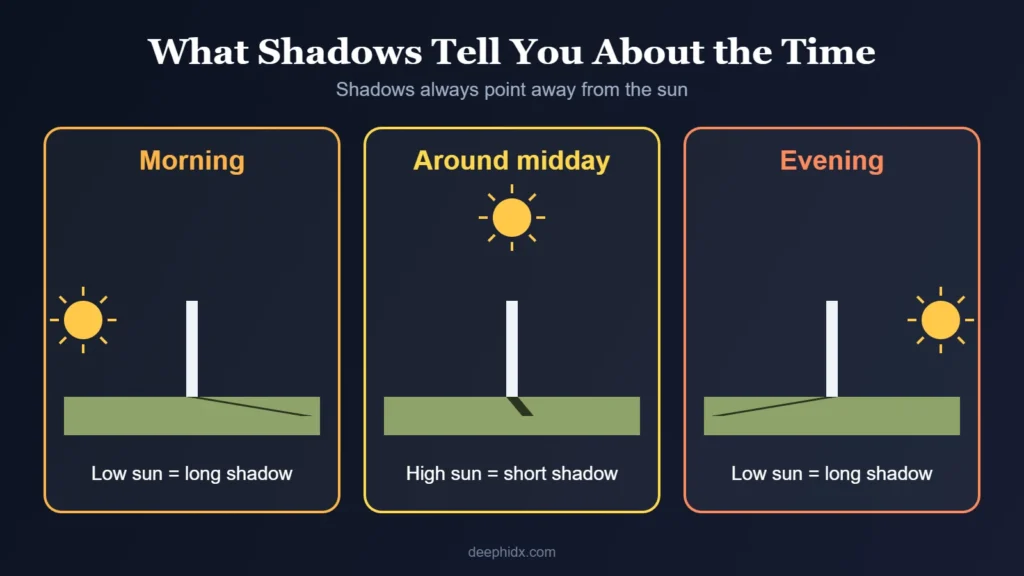
Shadows are one of the most useful clues when you want to know when a photo was taken. The sun changes its position in the sky during the day. This changes the direction and length of shadows.
In the morning, shadows are often long. As the sun rises higher, they usually become shorter. Later in the day, they grow longer again as the sun moves towards the horizon.
Look for clear shadows made by people, trees, lamp posts, walls, or buildings. Ask yourself these questions:
- Are the shadows long or short?
- Which direction are they pointing?
- Does the sunlight look like morning, midday, or late afternoon?
- Are there buildings or trees blocking the sunlight?
These clues may help you estimate the time of day. However, shadows alone may not tell you the exact date. The place, season, weather, and direction of the camera can all affect what you see.
Use SunCalc to test your guess
SunCalc is a free online tool that shows the sun’s position for a chosen place, date, and time. You can use it to compare the sun and shadows in a photo with the position you would expect at different times.
- Find the likely location of the photo.
- Open SunCalc and choose that location on the map.
- Select a possible date and time.
- Compare the sun’s direction with the shadows in the photo.
- Try other times and dates to see which ones fit the scene.
For a clear explanation of this method, read Bellingcat’s guide to estimating time from shadows.
Important: A shadow can have a similar length in the morning and afternoon. Check its direction and compare it with other clues before deciding on a time.
2. Check the Weather and the Season
The weather in a photo can help you work out when it was taken. Look for rain, snow, wet roads, dry ground, fallen leaves, or thick clouds.
For example, imagine a picture is said to show a town on a certain day. The road is covered in fresh snow. You can check whether snow was reported in that area around the claimed date.
Historical weather records can help you test this idea. Meteostat provides access to past weather information from weather stations and other data sources.
Here is how to use weather records:
- Work out the likely location of the photo.
- Write down the date someone claims the picture was taken.
- Check historical weather records for that place and date.
- Compare the records with visible clues in the picture.
- Check nearby dates if the weather does not match.
Seasonal clues can help too. Trees may have spring flowers, green summer leaves, autumn colours, or bare winter branches. Clothing and daylight can provide more clues.
Remember that weather records may be incomplete or come from a station some distance away. A rainy day in one part of a city does not mean every nearby street was wet. Use weather as supporting evidence, not final proof.
3. Look at Signs, Events, and Objects
Small details in a photo can help you narrow down its date. You might not notice them at first, but they can be very useful.
Start by looking for these clues:
- Event signs: A banner may show the name and date of a public event.
- Clocks and calendars: A clock may show a time, while a calendar may show a date.
- Road signs: A temporary road sign or work notice may point to a known project.
- Buildings: Construction work can help show whether a picture is old or recent.
- Vehicles: A model or design may help narrow down the possible year.
- Public displays: A shop window, poster, or event screen may contain a date.
For example, imagine a photo shows a public festival banner with a year printed on it. That year gives you a clue, but it does not prove the photo was taken during that festival. The banner might have been left up or the image might have been reused later.
Try to confirm the clue with another source, such as an official event page, a local news report, or a public photo posted at the time.
You can also use reverse image search to look for earlier copies of a picture. Google Lens may help you find the same image or similar images on other public websites. An older, trusted source can help you learn more about the photo’s history.
For more ways to check online images and public information, read our guides on finding where a photo was taken and checking viral photos, and our guide on spotting fake social media accounts.
4. A Simple Example: Checking a Public Photo
Imagine you find a public photo of a town square. A social media post says the picture was taken at 4 p.m. on 12 June. You want to check whether that claim makes sense.
This is a made-up example to show the method. It is not a claim about a real photo.
Step 1: Write down the claim
Record the claimed date, time, and location. Keep these details separate from what you have confirmed so far.
Step 2: Study the shadows
The photo shows long shadows pointing towards the left side of the image. This may suggest that the sun is low in the sky, but you need to know which way the camera is facing before drawing a conclusion.
Step 3: Check the sun’s position
Use SunCalc to check the claimed location, date, and time. If the sun’s position does not fit the shadows, test other possible times. Remember that the camera angle and nearby buildings can change how the scene looks.
Step 4: Check the weather
The road looks wet. Check historical weather records for rain around the claimed time. If rain was reported, that may support the claim. If no rain was recorded nearby, keep checking other sources rather than rejecting the photo straight away.
Step 5: Look for a second source
Look for a public event page, local news report, or an earlier post showing the same scene. Compare the details and keep a note of where each clue came from. Our guide on how to verify a viral photo shows how to find older copies of the same picture with a reverse image search.
After these checks, you may find that the claimed time is likely, unlikely, or still unknown. That is a useful result. Good photo checking means following the evidence, not forcing a clear answer when the clues are weak.
Chronolocation Clues: Which One Tells You What?
Each clue answers a different question. Some show the hour. Others show the month or the year. Use this table to know what each clue can and cannot tell you.
| Clue in the photo | What it can tell you | Free tool that helps |
|---|---|---|
| Shadow length and direction | The rough time of day | SunCalc |
| Rain, snow, clouds or wet roads | Which day matches the weather | Meteostat or old weather reports |
| Trees, flowers and clothes | The season or month | Your own eyes and common sense |
| Posters, banners and shop signs | The day of an event or a year | A web search for the event |
| New or missing buildings | The year, or a range of years | Google Street View history |
A clue only gives a range, not an exact answer. A shadow can say “late afternoon.” It cannot say “4:12 p.m.” That is why good chronolocation always uses more than one clue.
5. Why One Clue Is Not Enough
A photo can be misleading even when one detail seems to fit. A picture may be edited, an old sign may still be in place, or the weather may change across a short distance.
Use more than one type of evidence. For example, compare the shadows with the weather, then look for a public event record or an earlier copy of the image.
Also remember that a photo’s file date may be changed when someone edits or copies it. Metadata can be useful, but it should not be treated as proof on its own.
If you are also trying to find where an image was taken, combine these checks with geolocation. You can learn about photo verification methods through Bellingcat’s Online Investigation Toolkit.
Common Chronolocation Mistakes Beginners Make
- Trusting the date on the post. The day a photo was shared is often not the day it was taken. Old photos get posted again all the time.
- Forgetting the place. The sun is in a different spot in different countries. You need a good idea of where a photo was taken before shadows can tell you when.
- Forgetting the time zone. Check the local time where the photo was taken, not the time where you live.
- Stopping at one clue. One clue can trick you. Two or three clues that agree make a much stronger answer.
A Simple Chronolocation Checklist
- Write down the claimed date, time, and place.
- Check the sun and shadows in the photo.
- Use SunCalc to test possible times.
- Compare visible weather with historical weather records.
- Look for signs, clocks, events, buildings, and other date clues.
- Check metadata if the original file is available.
- Search for earlier copies of the image.
- Compare at least two independent clues before reaching a conclusion.
- Record what you know and what is still uncertain.
Frequently Asked Questions
Can I tell when a photo was taken without metadata?
Sometimes. You can study shadows, sunlight, weather, signs, buildings, and other details. These clues may help you estimate a date or time, even if the original file details are missing.
What is the best free tool for checking when a photo was taken?
SunCalc is a useful free tool for comparing sunlight and shadows at different times. Historical weather websites and image search tools can help you check other clues. No single tool can solve every photo.
Can shadows tell the exact time a photo was taken?
Sometimes shadows can help you estimate a fairly narrow time range, especially when the location and date are known. But camera angle, uneven ground, buildings, and unclear shadows can affect the result. It is safer to report an estimate than to claim an exact time without strong evidence.
Is the date in a photo’s file always correct?
No. A camera may have the wrong clock setting, or the file may have been edited or copied. The file date may also show when a copy was created rather than when the original picture was taken.
What is the difference between chronolocation and geolocation?
Chronolocation helps work out when a photo was taken. Geolocation helps work out where it was taken. Investigators may use both to check whether an image matches a claim.
Can old photos be checked with these methods?
Yes. Old photos may contain clues such as buildings, signs, clothing, vehicles, shadows, and known public events. The results depend on how much detail the image contains and whether you can find reliable records to compare it with.
Can a photo be edited to fake the time?
Yes. Someone can change the colors, add or remove objects, or even edit the date saved in the file. That is another reason to check several clues and look for other copies of the same photo online.
Do I need special software for chronolocation?
No. You can start with free tools like SunCalc, a weather history website and a normal web search. The most important tools are patience and careful notes.
Helpful Tools and Sources
These resources can help you learn more about photo time checks and online investigations.
- SunCalc — check the sun’s position for different dates, times, and places.
- Bellingcat: How to Tell When a Photo Was Taken by Measuring Shadows — learn how shadow length can help estimate time.
- Bellingcat: Using the Sun and Shadows — learn how sunlight can help with photo checks.
- Meteostat — explore historical weather data.
- Bellingcat’s Online Investigation Toolkit — explore tools for checking public images and information.
- DeepHiDX Dark Web Glossary — understand common online investigation terms.
- DeepHiDX Sources and Research — learn about the sources used in our guides.
The Short Version
If you want to know how to tell when a photo was taken, start by checking the shadows and sunlight. Then compare the weather, signs, events, objects, and file details. Tools like SunCalc can help you test possible times.
Do not trust one clue alone. Compare different sources, write down what you find, and be honest about what you cannot confirm. A careful estimate is better than a confident guess.




Comments