

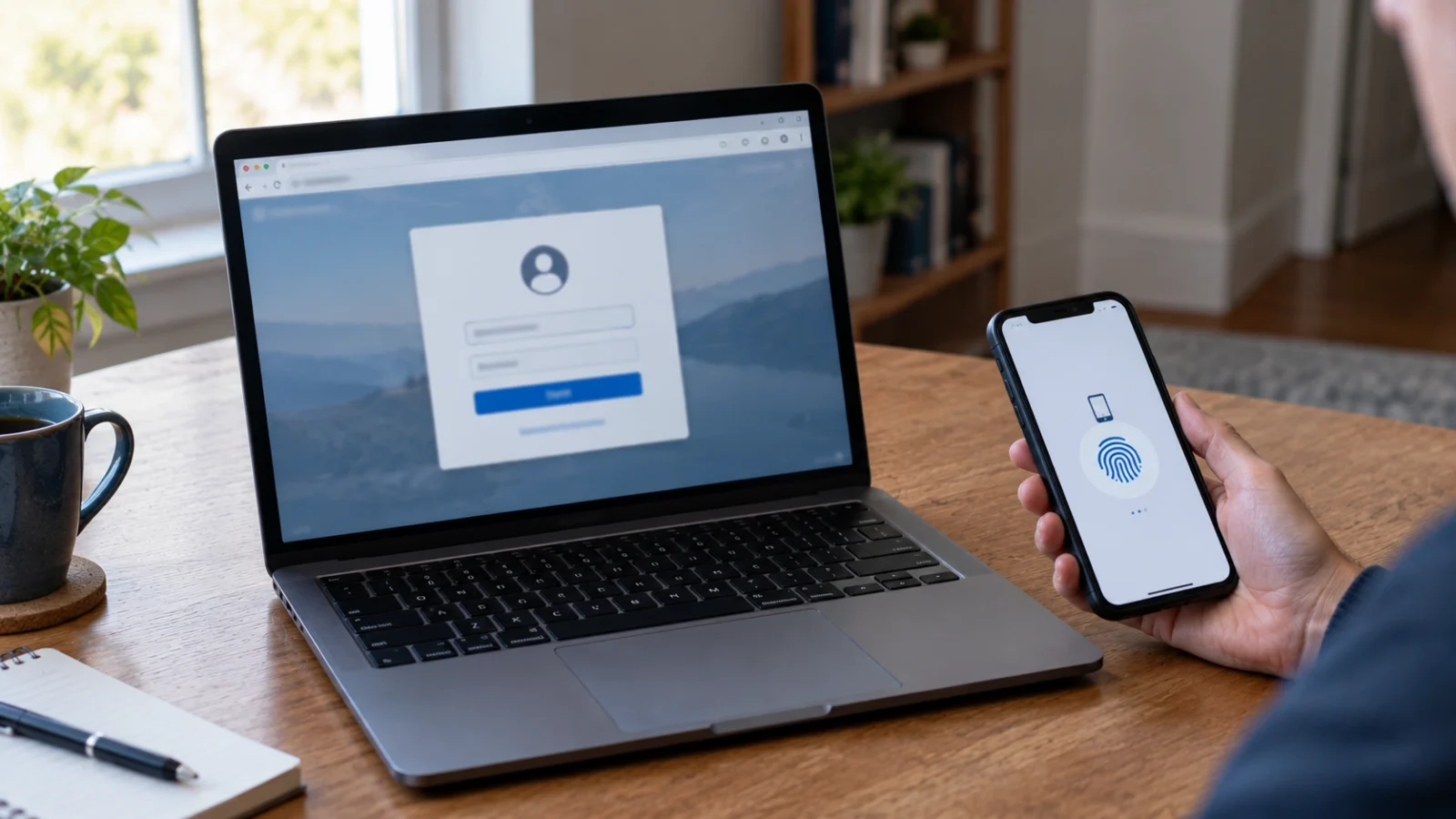
By Ehtijad Ali
Updated: October 2026
Reading time: about 8 minutes
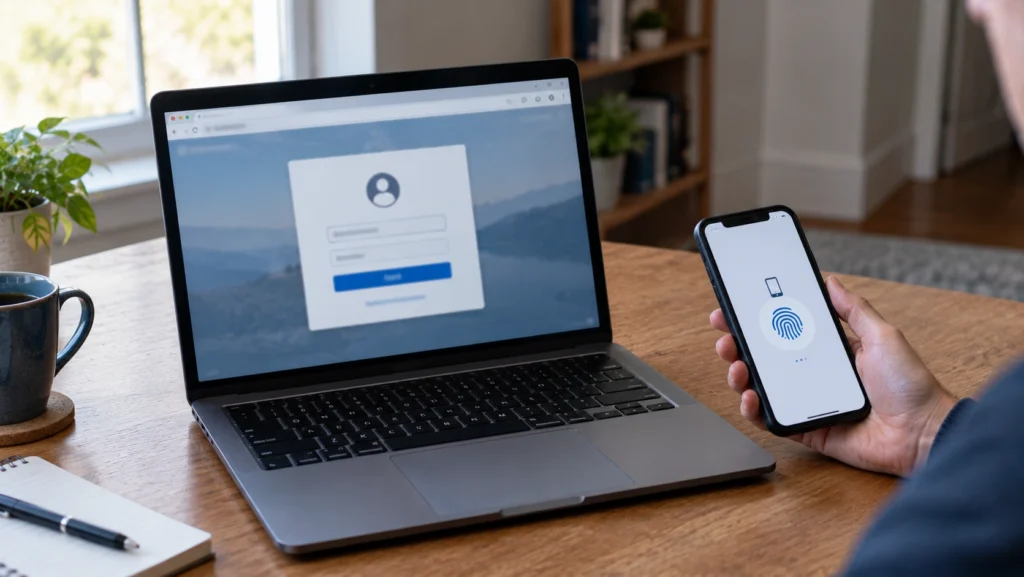
You use passwords for email, social media, shopping, and many other websites. But passwords can be stolen. Someone might trick you into typing one on a fake website, or a company might suffer a data breach.
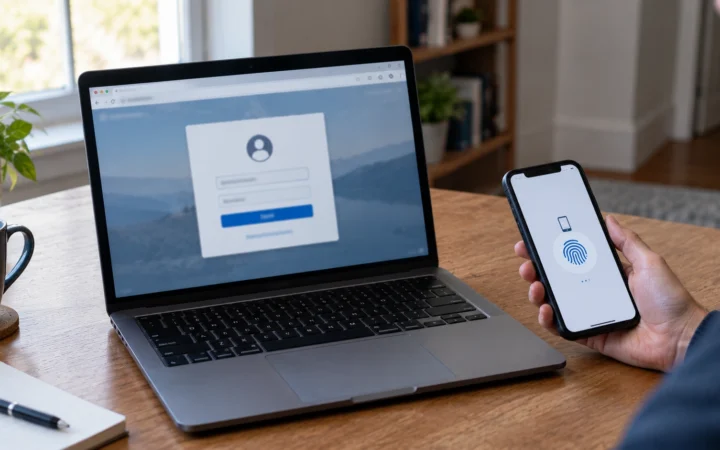
There is another way to sign in. It is called a passkey. Instead of typing a password, you can unlock your phone or computer with your fingerprint, face scan, or device PIN.
But what is a passkey, how does it work, and should you switch from passwords? This guide explains everything in simple words, including how to create your first one and what to do if you lose your phone.
What Is in This Guide?
What Is a Passkey?
A passkey is a way to sign in to an app or website without typing a normal password. It uses a special digital key that works with your device.
Think of your home as a room with a locked door. A normal password is like a key that you must remember and carry in your head. Someone could trick you into giving that key away.
It works more like a special key that stays protected on your phone, computer, or password manager. When you want to enter an account, your device checks that it is really you before allowing the sign-in.
You may unlock it with Face ID, a fingerprint, or the PIN you use to unlock your device. The exact options depend on your device and the service you use.
Your face or fingerprint is not normally sent to the website. Your device checks it locally and confirms that you have approved the sign-in.
This sign-in method is supported by many major services and devices. However, not every website offers them yet. The FIDO Alliance passkey guide explains how this technology works.
How Do Passkeys Work?
When you set one up, your device creates two connected digital keys. One is private, and the other is public.
- Private key: This is kept protected by your device or passkey provider.
- Public key: The website saves this key so it can check that your sign-in is real.
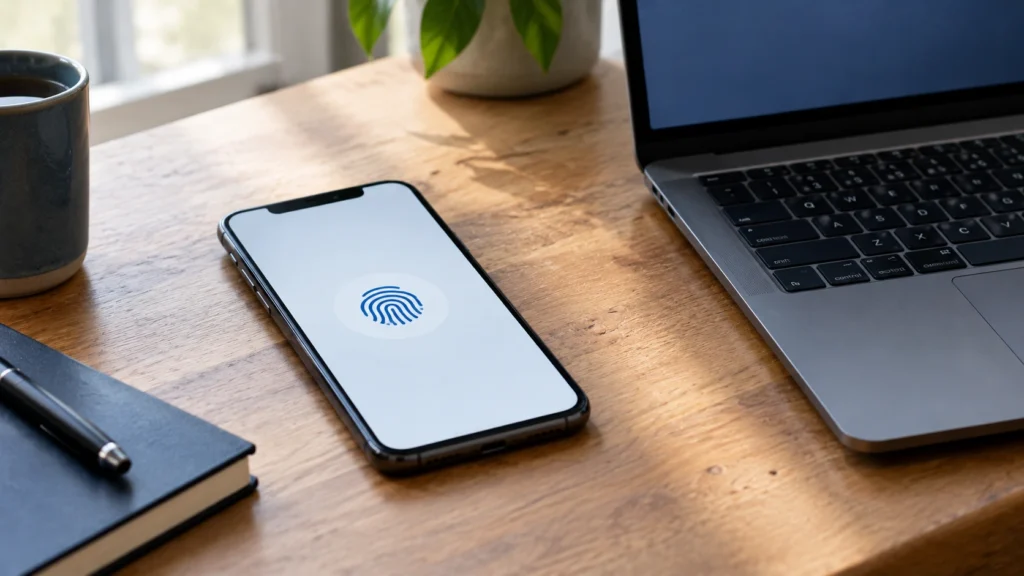
When you sign in, the website sends a challenge. Your device uses the private key to answer it. The website checks the answer using the public key.
If the check is correct, you can enter your account. You do not need to type or remember a long password.
You do not need to understand the technical details to use one. Just remember that the website checks proof from your device instead of asking you to share a password.
Are Passkeys Safer Than Passwords?
For most people, they offer better protection against common password attacks, especially fake login pages. They also remove the need to remember a different password for every account that supports them.
1. Passkeys help stop phishing
Phishing is when a scammer creates a fake website or message to trick you into sharing private information.
Imagine you receive an email that looks like it came from your bank. The email sends you to a fake website that looks almost real. If you type your password there, the scammer may steal it.
A passkey is linked to the real website or app. Your device checks where the sign-in request comes from, so it will not normally use it on a fake website with a different address.
This makes passkeys resistant to phishing. It does not mean every scam is impossible. For example, a tech support scam may still try to trick you into giving a stranger control of your computer. But they remove one major way criminals steal account details.
2. Passkeys are unique to each account
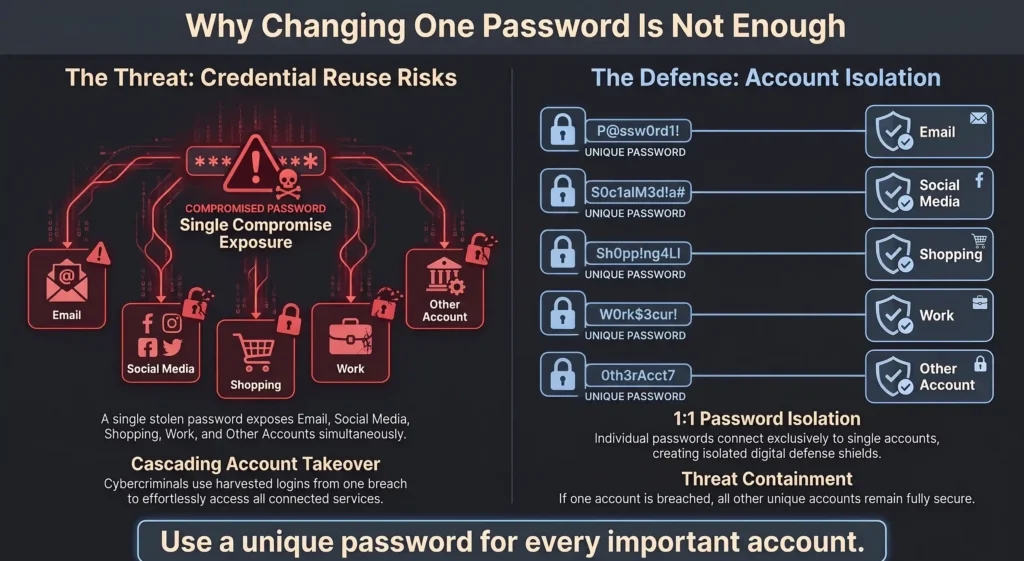
Many people reuse the same password on several websites. If one site suffers a data breach, criminals may try that password on other accounts.
Passkeys use separate credentials for different websites. There is no normal password for a criminal to reuse across all those accounts. This blocks an attack called credential stuffing, where criminals test stolen passwords on many websites at once.
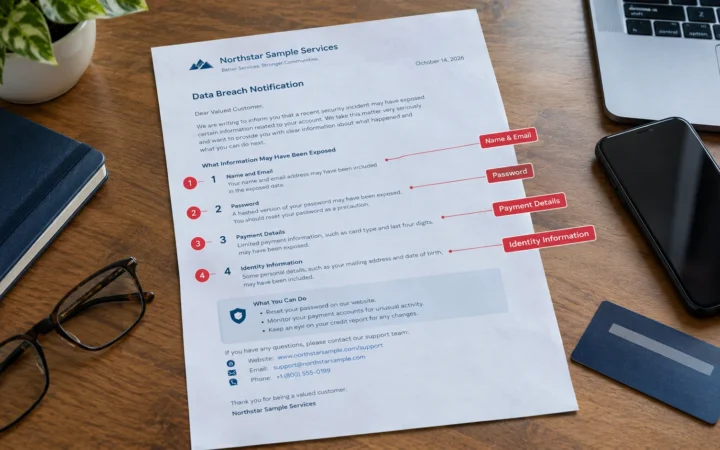
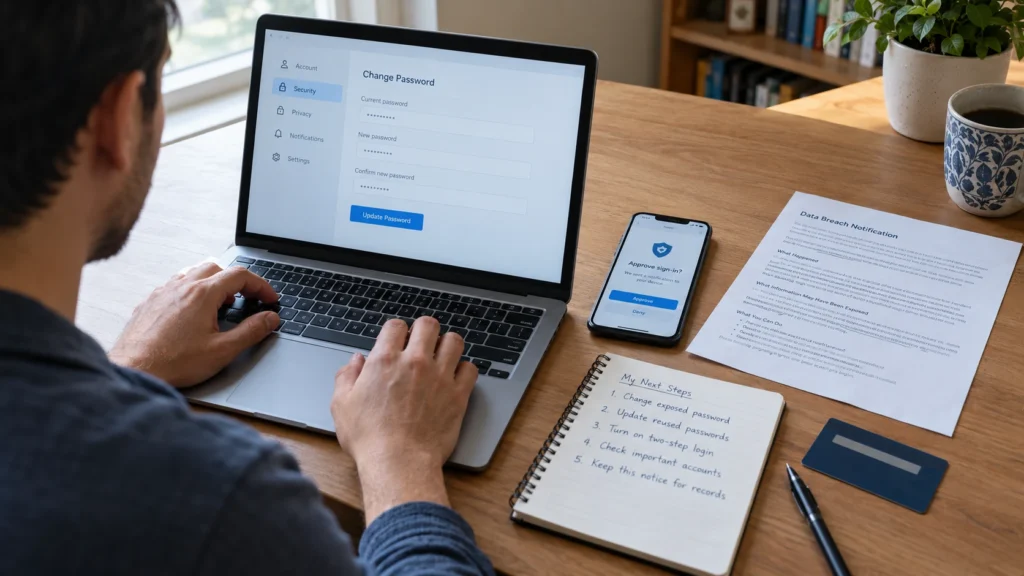
If a company tells you your details were leaked, read our guide on what to do after a data breach notification letter.
3. Passkeys can be easier to use
You do not need to invent a long password, write it down, or remember when you last changed it. You can often sign in with a quick fingerprint or device unlock.
Still, they do not protect you from every problem. Someone who can unlock your device may be able to access accounts on it. Keep your phone locked, install updates, and protect the account that stores them.
For more advice, see the CISA Secure Our World guide.
Passkey vs Password: A Quick Comparison
Here is an easy way to see the difference. Read each row from left to right.
| Question | Password | Passkey |
|---|---|---|
| Do you need to remember it? | Yes | No |
| Can you type it on a fake website by mistake? | Yes | No, it only works on the real site |
| Can one leak expose many accounts? | Yes, if you reuse it | No, each account gets its own passkey |
| How do you sign in? | Type letters and numbers | Use your fingerprint, face, or device PIN |
| Does every website support it? | Yes | Not yet, but many big ones do |
Where Are Passkeys Stored?
Your passkey is stored by your device or a provider. A provider is a service or app that keeps these keys safe and helps you use them when you sign in.
- Apple devices: They can be saved and synced through iCloud Keychain.
- Android devices: They can be saved through Google Password Manager or another supported provider.
- Computers: You may use a built-in feature, a supported password manager, or another compatible device.
- Security keys: Some physical security keys can hold keys that stay tied to that key.
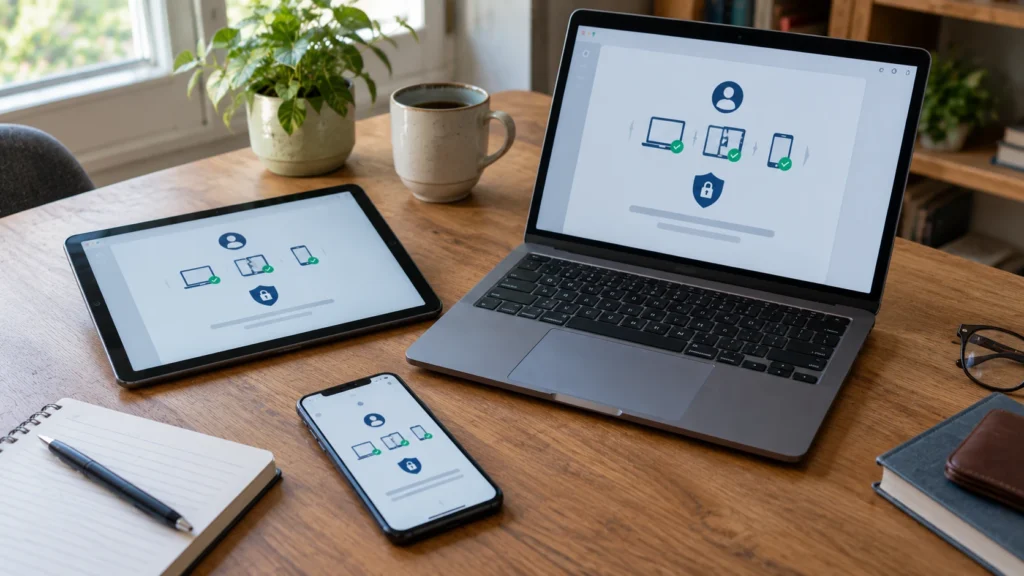
Some passkeys can sync securely across devices linked to the same provider account. This means you may be able to use the same one on your phone, tablet, and computer without creating a new one on each device.
Others are tied to one device or physical security key. These may not sync automatically. Check which type you are using before relying on it as your only way into an important account.
Read the official guides for Google accounts and iPhone for details about your device.
What Happens If You Lose Your Phone With Passkeys?
Losing your phone does not always mean you lose access to your accounts. What happens next depends on where they are stored and whether you can access another trusted device.
If your keys sync through a provider, you may be able to restore them on a replacement device after signing in to that provider account. If one only exists on the lost device, you may need another sign-in or account recovery method. If your phone suddenly loses service instead of going missing, read about the SIM swap scam, because criminals sometimes steal phone numbers to take over accounts.
Take these steps if your phone is lost
- Use the phone maker’s official service to locate, lock, or erase the lost device if needed.
- Use another trusted device to sign in to your important accounts.
- Review the devices linked to your Google, Apple, or passkey provider account.
- Remove the lost device’s passkey or account access if you think someone could unlock it.
- Follow the account provider’s official recovery steps if you cannot sign in.
Before anything goes wrong, make sure your recovery email and phone number are up to date. Learn how to protect other personal details in our guide to important privacy settings.
Never assume every key can be recovered automatically. Set up your recovery options before you need them.
How to Set Up Your First Passkey
Google is one place to try your first one. The exact steps may differ on other websites, but the process is similar.
- Open the official Google Account passkey settings.
- Sign in and confirm that you are using your own account.
- Choose the option to create a passkey.
- Follow the instructions shown on your phone or computer.
- Unlock your device with your fingerprint, face scan, or device PIN when asked.
- Check the account’s security settings to make sure the new key appears in your list.
Use only a device you own and trust. Do not create one on a public computer or a device shared with people you do not trust.
Keep your device and browser updated. If the option is missing, the service or device may not support the feature in the way you expect.
For Apple devices, follow the official Apple instructions. Never enter your device PIN or account password on a page reached through a strange message.
Should You Switch From Passwords to Passkeys?
Yes, for accounts and services that support passkeys, they are a good choice for most people. They can make sign-in easier and offer strong protection against fake login pages.
You do not need to change every account in one day. Start with your main email account, because it is often used to reset access to your other accounts. Then move to social media, shopping, and other important services.
- Use passkeys when a trusted service offers them.
- Keep your phone and computer protected with a screen lock.
- Check that your provider account has safe recovery options.
- Keep backup sign-in methods up to date.
- Continue watching for strange login alerts and account activity.
If a service does not support passkeys, use a long, unique password and turn on two-step verification. An authenticator app or security key can provide extra protection where supported.
Frequently Asked Questions
Can I use a passkey on another device?
Often, yes. If yours syncs through a provider, it may be available on other devices linked to the same account. Some services also let you use your phone to sign in on a nearby computer by scanning a QR code.
Do passkeys use fingerprints?
They can, but a fingerprint is not required in every case. Depending on your device, you may use a face scan or device PIN to approve a sign-in. Your biometric information stays on your device when local biometric checks are used.
Can hackers steal my passkey?
They are designed to make common account attacks much harder, but no security method removes every risk. Protect your device, secure your provider account, use official recovery options, and remove access from devices you no longer trust.
Helpful Links and Sources
These official resources explain how they work and how to set them up safely.
- FIDO Alliance: Passkeys explained
- Google: Sign in with a passkey
- Apple: Use passkeys on iPhone
- Apple: About the security of passkeys
- CISA: Secure Our World
- DeepHiDX: Dark Web Glossary
- DeepHiDX: Important Privacy Settings
- DeepHiDX: What Is Credential Stuffing?
- DeepHiDX: Sources and Research
- DeepHiDX: What Happens If I Click a Phishing Link?
- DeepHiDX: How to Tell If a Website Is Fake
- DeepHiDX: Deep Web vs Dark Web

Comments