

By Ehtijad Ali
Updated: October 2026
Reading time: about 11 minutes
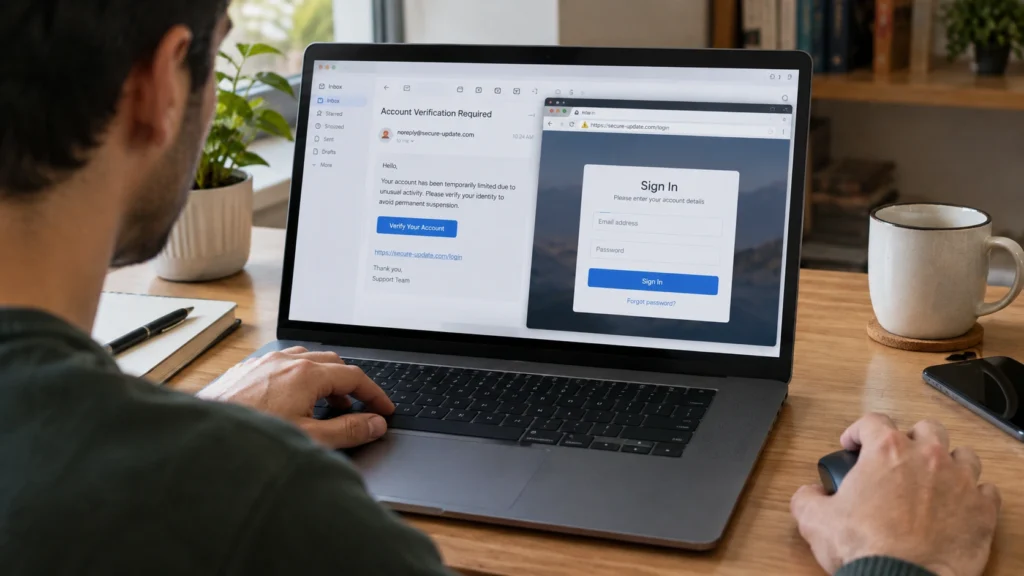
If you just clicked a strange link in an email, text message, social media post, or website, you may be worried.
First, do not panic. Clicking a phishing link does not always mean your phone or computer was hacked. What happens next depends on what you did after clicking it.
If you only opened the page, the risk may be lower. If you entered your password, gave away bank details, downloaded a file, or installed an app, you need to take more steps.
This guide explains what happens if I click a phishing link, what to do in the first five minutes, how to check your device, and when you should get professional help.
What is in this guide?
What happens if you click a phishing link?
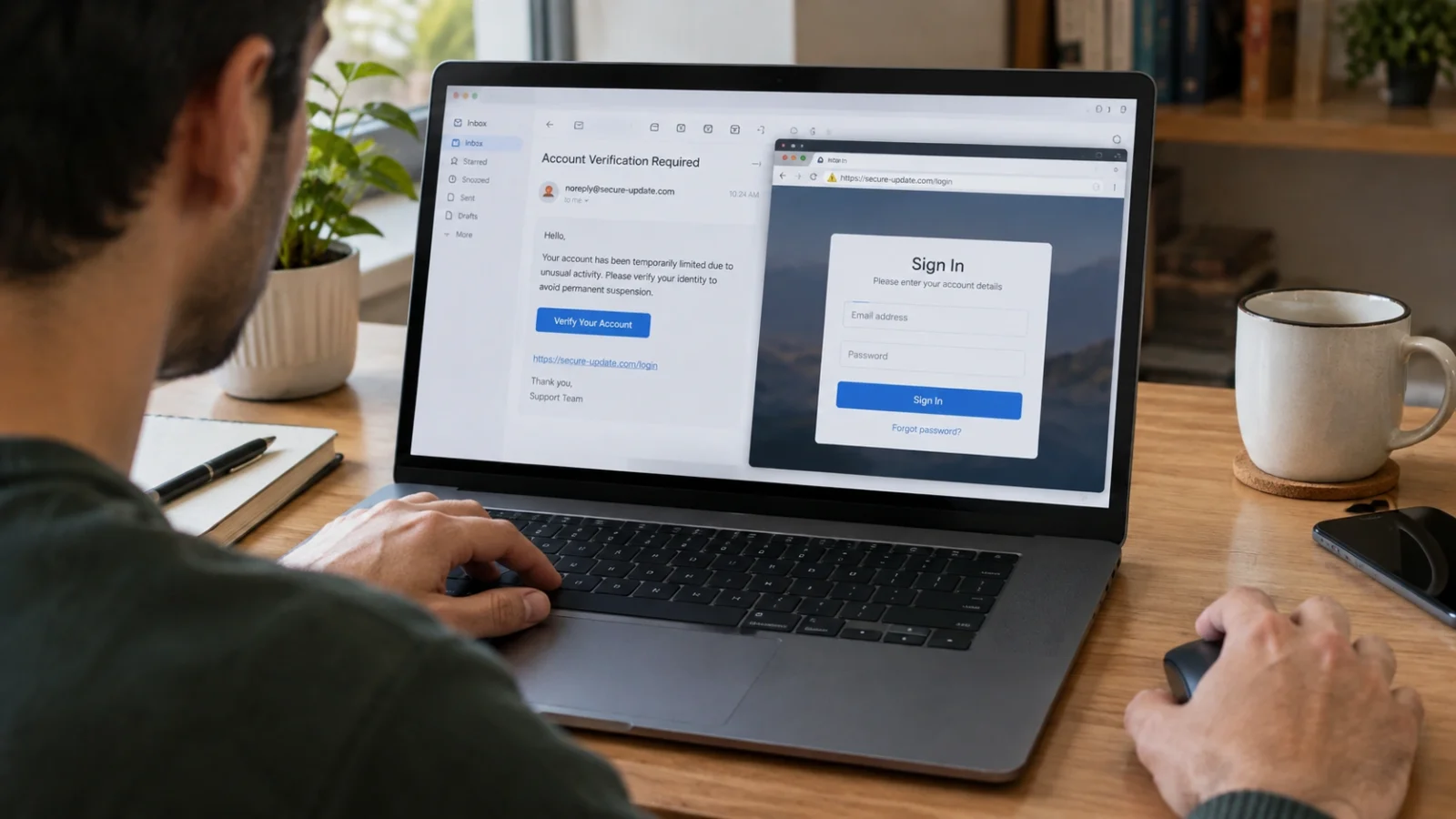
A phishing link is a link made to trick you. It may take you to a fake login page, a fake payment page, or a website that tries to make you download something.
For example, you may get a message saying that your bank account has a problem. The message tells you to click a link and log in. The link may look real, but it can lead to a fake website made to steal your login details.
Sometimes the page may simply collect information about your visit. In other cases, it may ask you to enter a username and password, download a file, install an app, or give permission to something.
So the honest answer to what happens if I click a phishing link is: it depends on what happened after you clicked.
The UK National Cyber Security Centre says that if you clicked a suspicious link but did not enter personal information, download files, or install software, you may not need to take further action. However, you should still watch your accounts and device for anything unusual.
Clicking vs. entering details vs. downloading a file
These three situations are different. Knowing which one happened to you can help you choose the right next step.
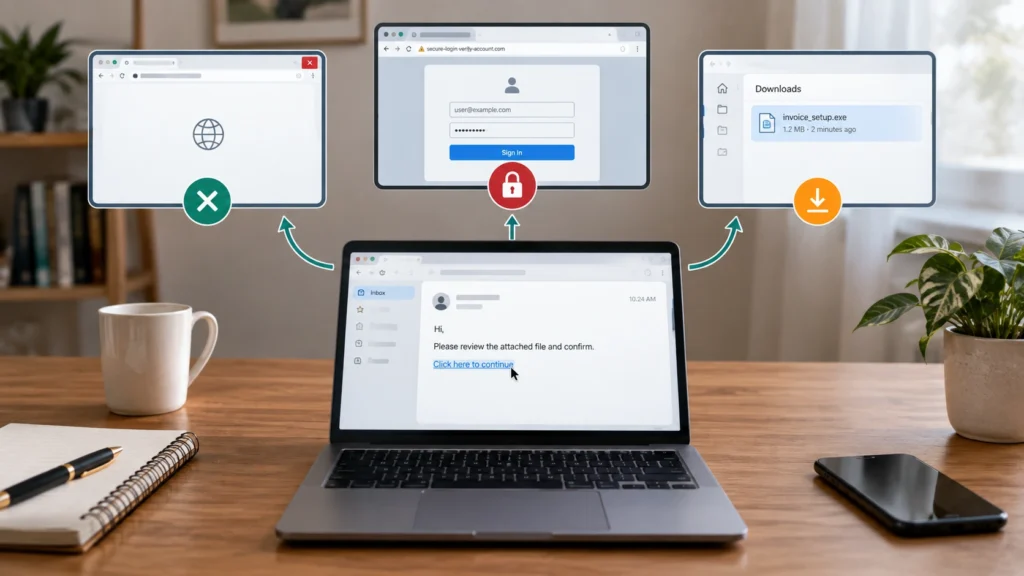
1. You clicked the link and closed the page
This is usually the lowest-risk situation. If you did not enter information, download anything, or install software, there may be nothing more to do.
Still, do not go back to the page. Close it, delete the message, and keep an eye on your accounts.
2. You clicked and entered your password
This is more serious. The fake website may have captured the password you entered.
Change that password immediately on the real website. If you use the same password anywhere else, change it there too. Then turn on two-factor authentication if the service offers it.
Some fake login pages can also steal your login “session.” This can let a criminal get into your account without needing your password or your 2FA code. Signing out of all devices helps stop this. Learn how it works in our guide to session hijacking and stolen cookies.
3. You downloaded or installed something
This needs more attention. A downloaded file could contain malware. The U.S. Federal Trade Commission recommends updating your security software and running a scan if you think a phishing link downloaded harmful software.
One common type is infostealer malware. It quietly copies saved passwords, cookies, and card details from your device and sends them to criminals.
What to do in the first five minutes
If you just clicked a suspicious link, follow these steps in order.
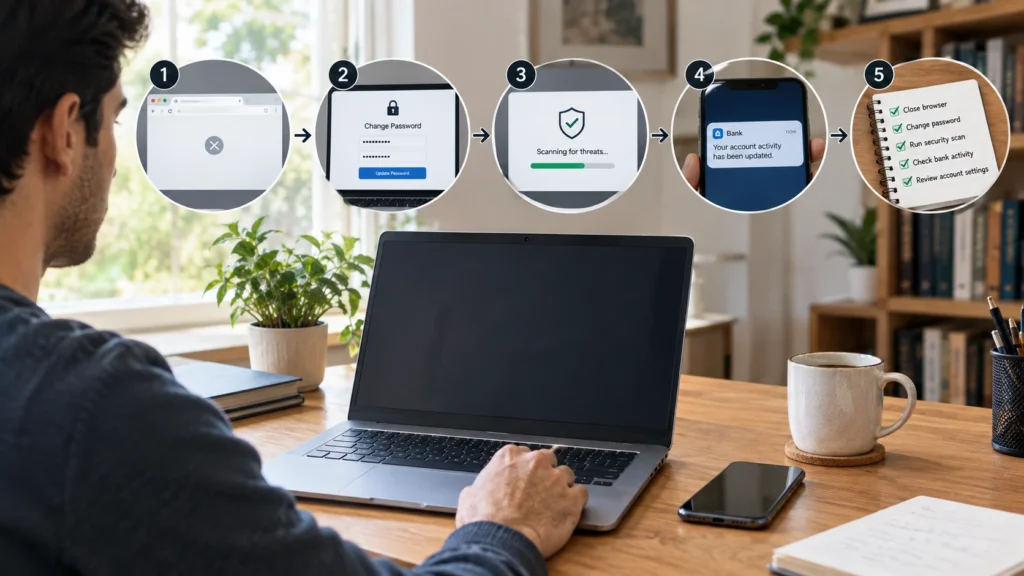
Step 1: Close the page
Close the suspicious browser tab or window. Do not click more buttons on the page. Do not call a phone number shown in a pop-up. Do not download anything it asks you to download.
Step 2: Think about what you did
Ask yourself three simple questions:
- Did I enter a password?
- Did I enter bank, card, or other private information?
- Did I download or install anything?
Your answer tells you what to do next.
Step 3: If you entered a password, change it
Go directly to the real website or open its official app. Do not use the link from the suspicious message.
Change the password and sign out of other sessions if the service gives you that option. If the same password was used on other accounts, change those passwords too.
Step 4: If you downloaded something, scan your device
Update your security software and run a full scan. If the scan finds a problem, follow the security software’s instructions to remove it.
The FTC also recommends stopping sensitive logins if you think malware may have been installed, then updating your security software and running a scan.
Step 5: Watch your accounts
Look for login alerts, password reset messages, new devices, messages you did not send, or payments you did not make.
If something looks wrong, act quickly. Do not wait for the problem to become bigger.
How to check if anything was actually installed
One common worry after clicking a phishing link is: “Did it install something on my device?”
Start with a security scan. Make sure your phone, computer, browser, and security software are up to date before you scan.
- Check your recent downloads.
- Look for apps or programs you do not remember installing.
- Check browser extensions for anything unfamiliar.
- Look for unusual pop-ups or warnings.
- Watch for strange battery use, slow performance, or other unusual behavior.
- Run a full security scan.
Do not assume that every slow device has malware. A slow phone or computer can have many normal causes. A security scan is a better way to check.
If you are not sure what a malware warning means, our security and dark web glossary can help explain common terms in simple language.
What if I entered my password?
If you entered your password on a fake website, treat that password as exposed.
Open the real website yourself and change the password. If you reused that password on other websites, change it there too.
Also turn on two-factor authentication. This adds another step when you log in and can help protect your account even if someone knows your password.
If you cannot log in anymore, use the account provider’s official recovery page. Do not trust a recovery link sent to you by the person who contacted you.
What if I entered bank or card details?
If you entered your bank account, card number, PIN, or other financial information into a phishing page, contact your bank or card company as soon as possible.
Use the phone number in your banking app, on your card, or on the bank’s official website. Do not use a number from the suspicious message.
Check recent transactions and look for anything you do not recognize. Your bank can tell you what steps to take next.
The NCSC also advises people who have shared banking details to contact their bank immediately.
Where do stolen passwords and card details go?
You might wonder why scammers want your password or card number so badly. The simple answer is money.
Stolen details are often sold to other criminals. Some of this selling happens on hidden websites on the dark web. For example, Hydra Market was once the biggest dark web market in the world, and stolen data was one of the things sold there before police shut it down in 2022.
These hidden sites run on Tor, a privacy tool. But Tor itself is not a crime in most places, and many people use it for good reasons. If you are curious, read Is Tor Illegal? What the Law Says by Country.
Want to follow the full path of stolen information? These guides explain it step by step:
This is why acting fast matters. If you change your password quickly, a stolen copy becomes useless.
When should you get professional help?
You do not need to pay someone every time you click a bad link. But there are times when getting help is the safer choice.
- You installed a program after clicking the link.
- Your security software reports malware that you cannot remove.
- Your account is being used by someone else.
- You cannot access your email or other important account.
- You gave a scammer remote access to your computer or phone.
- You entered bank details and now see an unknown transaction.
- This happened on a work or school device.
If the device belongs to your workplace, tell your IT or security team. Do not hide the mistake. Reporting it quickly can help them protect the rest of the company.
The NCSC specifically recommends contacting IT when a suspicious link was opened on a work device.
How to avoid phishing links next time
Phishing messages often try to make you act quickly. They may say your account will be closed, your payment failed, or something important needs your attention.
Slow down before you click.
- Do not click unexpected links.
- Check the sender before trusting the message.
- Look at the website address carefully.
- Do not enter passwords after following an unexpected link.
- Do not download files from messages you do not trust.
- Open the official website yourself when you need to check an account.
- Use two-factor authentication on important accounts.
The FTC recommends contacting a company through a phone number or website you already know is real instead of using the information in a suspicious message.
How to check a link before you click
You can often spot a phishing link before you open it. Here are some easy tricks:
- Peek at the real address. On a computer, rest your mouse on the link without clicking. On a phone, press and hold the link. The real web address will show up.
- Read the main name carefully. A link to paypal.com is real. A link to paypa1-secure-login.com is fake. Scammers swap letters for numbers or add extra words.
- Do not trust the padlock alone. The little lock icon only means the connection is private. Fake websites can have a padlock too.
- Watch for pressure. Words like “urgent,” “final warning,” or “your account will be closed today” are common tricks.
- Check it with a free tool. You can paste a web address into Google Safe Browsing site status to see if Google has flagged it as unsafe.
If you are still not sure, do not click. Open your browser, type the company’s website address yourself, and log in from there. If the message was real, you will see the same alert inside your account.
Teaching these simple checks to children, parents, and grandparents is one of the best ways to keep your whole family safe online.
Questions people ask
Can clicking a phishing link hack my phone?
It can create a risk, but clicking a link does not automatically mean your phone has been hacked. The risk is higher if you downloaded a file, installed an app, gave permission, or entered private information.
I clicked a phishing link but did not enter information. What should I do?
Close the page, do not download anything, and do not return to the link. If you did not enter information, download a file, or install software, you may not need to do anything else. Still watch your accounts for unusual activity.
I clicked a phishing link and nothing happened. Am I safe?
Nothing happening on the screen is a good sign, but it does not prove that nothing happened. If you entered details or downloaded something, follow the steps in this guide anyway.
What happens after you click a phishing link on your phone?
You may be sent to a fake website, asked for your login details, or asked to download something. The exact risk depends on the page, your device, and what you did after opening it.
Should I change my password after clicking a phishing link?
If you entered your password on the phishing page, yes. Change it immediately. If you only opened the page and did not enter or download anything, changing the password is not always necessary, but keep watching your account.
What should I do if my child clicked a phishing link?
Stay calm and thank them for telling you. Kids who feel safe to speak up will tell you faster next time. Then follow the same steps in this guide: close the page, ask what they typed or downloaded, change any password they entered, and run a security scan on the device. If they entered a parent’s card details, call your bank right away.
Afterward, show them how to check a phishing link before clicking. A five-minute talk now can prevent a bigger problem later.
Should I report the phishing message?
Yes. Reporting phishing helps security teams and platforms find harmful messages and websites. In the U.S., the FTC accepts reports through ReportFraud.ftc.gov. The NCSC also provides ways to report suspicious emails and websites in the UK.
Helpful links
These official sources were used to check the safety advice in this article. You can also learn how we choose and check information on our sources and research page.
- CISA: Phishing guidance
- NCSC: What to do after phishing
- NCSC: How to spot phishing scams
- FTC: How to recognize and avoid phishing scams
- FTC: How to protect against malware
- FTC: Protect yourself from phishing scams
More guides from DeepHiDX:
- Session Hijacking: How Stolen Cookies Let Hackers Skip Your Password and 2FA
- What Is Infostealer Malware? 7 Things It Steals
- Hydra Market Dark Web: The Rise and Fall of a Giant
- Is Tor Illegal? What the Law Says by Country
For simple explanations of terms such as phishing, malware, and credential stuffing, visit our dark web glossary.
For information about how we publish and check our content, see our sources and research page and disclaimer.
The short version
If you clicked a phishing link, do not panic.
- Close the suspicious page.
- Do not download or install anything.
- If you entered a password, change it from the real website.
- If you reused that password, change it on other accounts too.
- If you downloaded something, update your security software and run a full scan.
- If you gave away bank details, contact your bank immediately.
- Watch your accounts for unusual activity.
- Get professional help if malware, account takeover, or financial loss is involved.
One wrong click does not always mean you have been hacked. What matters most is what happened after the click and how quickly you respond.

Comments